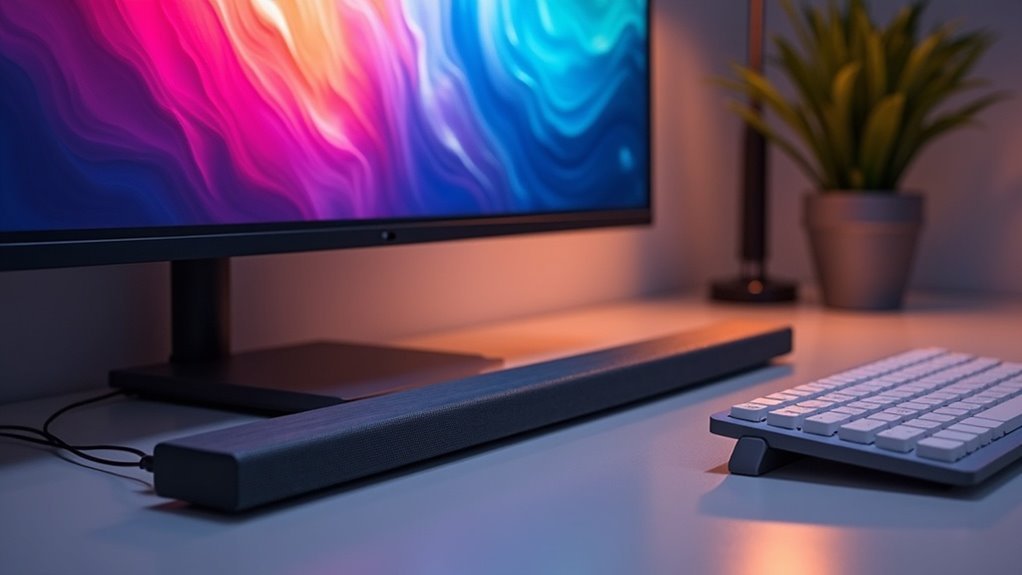
Yes, a soundbar can work seamlessly with PC monitors, greatly enhancing your audio experience compared to built-in speakers. Many soundbars are designed to be compatible with various monitor brands, ensuring easy setup and optimal performance. Whether you use USB or audio jack connections, you’ll enjoy improved sound clarity for gaming, streaming, or video calls. If you’re curious about the different types of soundbars available and how to set them up effectively, there’s plenty more to uncover on this website dedicated to soundbars.
Key Takeaways
- Yes, soundbars can enhance your audio experience when connected to PC monitors, making them ideal for gaming, streaming, and video conferencing.
- Ensure compatibility by checking if the soundbar is suitable for your specific monitor model, such as those from Dell.
- USB-powered soundbars offer easy connections with a single cable, while AC-powered models may deliver superior audio quality.
- For optimal setup, connect the soundbar to the monitor and adjust your PC’s audio output settings accordingly.
- If HDMI is not available, consider using the correct input on the soundbar, such as optical or AUX connections, to ensure seamless audio playback.
What Is a Dell Soundbar?
A Dell soundbar is a sleek audio solution designed to enhance your viewing experience on Dell monitors. This slim, rectangular sound bar attaches directly to compatible monitors, allowing you to save desk space while considerably improving audio clarity compared to built-in speakers.
You’ll find various models, like the USB-powered Dell Slim Conferencing Soundbar SB522A and the AC-powered Dell AX510, catering to different needs. Installation is straightforward since these soundbars typically don’t require additional drivers—just plug them in, and you’re ready to enjoy superior sound.
Benefits of Using a Soundbar With Your Dell Monitor
When you enhance your audio setup with a soundbar, you’re not just upgrading your sound; you’re transforming your entire multimedia experience.
Soundbars significantly improve audio clarity compared to built-in speakers, making them ideal for gaming, streaming, and video conferencing. Their sleek design allows for easy placement, saving valuable space while adding a touch of elegance to your setup.
Upgrade your audio clarity with a stylish soundbar, perfect for gaming, streaming, and video conferencing.
Many soundbars are USB-powered, simplifying your connections with a single cable for both power and audio. With plug-and-play functionality, soundbars require no additional drivers, ensuring a seamless experience.
Elevate your audio game and enjoy a richer soundstage today!
Types of Dell Soundbars
Dell offers two primary types of soundbars that cater to different user needs and preferences: USB-powered and AC-powered models.
USB-powered soundbars, like the Dell Slim Conferencing Soundbar SB522A, connect via USB for both power and audio, simplifying your setup with a single cable. This makes them ideal for users who prefer a minimalist approach.
On the other hand, AC-powered soundbars, such as the Dell AX510, require a separate power adapter and may provide enhanced audio performance due to dedicated power sources.
It’s important to note that both types may have limited compatibility with non-Dell monitors, especially when using HDMI connections.
Choose the soundbar that best fits your audio needs!
Dell Soundbar Compatibility
When considering soundbar compatibility, it’s essential to check the supported monitor models, as not all soundbars will fit or connect with non-Dell displays.
You’ll find various connection methods available, primarily USB-powered options that streamline setup.
Additionally, understanding audio quality considerations will help you maximize the soundbar’s performance with your monitor.
Supported Monitor Models
If you’re considering enhancing your audio experience with a soundbar, it’s important to know which monitor models are compatible with specific soundbars. Many soundbars are designed to fit particular monitor models, ensuring a perfect fit and improved audio clarity.
Popular options like the Dell Slim Conferencing Soundbar SB522A and the Dell AX510 connect via USB or AC power. However, compatibility with non-Dell monitors is limited due to unique mounting slots.
Before purchasing, make sure your monitor supports the soundbar’s mounting mechanism and connection type. Additionally, keep in mind that many soundbars don’t offer Bluetooth functionality, so direct connections through designated ports are necessary for optimal performance.
Connection Methods Available
Several connection methods are available for integrating Dell soundbars with compatible PC monitors, enhancing your audio experience without cluttering your workspace.
You can connect via USB or AC power, depending on your model, ensuring a streamlined setup. Dell soundbars attach directly to supported monitors, saving desk space while providing superior audio clarity compared to built-in speakers.
For ideal audio output, check that your monitor has the necessary options like HDMI ARC or an audio jack. Remember to set the soundbar as your default audio output device in your computer’s settings for seamless playback.
Note that Bluetooth connectivity isn’t supported, ensuring a reliable and high-quality audio connection for your soundbar experience.
Audio Quality Considerations
Maximizing your audio experience with soundbars involves understanding the nuances of sound quality that come from these devices.
Soundbars greatly enhance audio clarity compared to standard monitor speakers. Compatibility is straightforward, as they typically attach directly to mounting slots for a sleek setup.
However, audio performance can vary; USB-powered models offer convenience but may lack depth compared to AC-powered options.
To ensure the best sound quality, make sure to set your soundbar as the default audio output in your computer settings.
Additionally, always check that the connections between your soundbar and monitor are secure to prevent issues like static or distorted audio.
How to Set Up a Dell Soundbar
Setting up your Dell Soundbar is a straightforward process that significantly enhances your audio experience.
Start by unboxing the soundbar and verifying that all components are included. Securely attach the soundbar to the mounting slots on the bottom of your Dell monitor.
For power, connect it using a USB cable for USB-powered models or an AC adapter for AC-powered models, ensuring that all connections are tight.
After completing the physical setup, configure your computer’s sound settings to designate the Dell Soundbar as the default audio output device.
For further guidance and troubleshooting, refer to the user guide. Additionally, utilizing HDMI ARC can simplify your audio connections and optimize your sound setup.
Connecting the Soundbar via USB or Audio Jack
Connecting a soundbar to your PC monitor can be a seamless experience, especially when you know your options. You can connect a soundbar via USB, which allows for both power and audio through a single cable.
If your monitor lacks USB audio capabilities, you can use a 3.5mm audio jack instead, provided your monitor has an audio output. Remember to configure your PC’s sound settings to set the soundbar as the default audio output.
It’s important to check the soundbar specifications, as some models may require a separate power adapter. Finally, ensure that the soundbar’s input options are compatible with your monitor’s outputs for optimal performance.
Common Soundbar Issues and How to Fix Them
When you encounter sound issues with your soundbar, it’s essential to ensure it’s set as the default audio output device and that all connections are secure.
If you’re experiencing distorted audio, check for loose connections or outdated drivers, as these could be the underlying causes.
Addressing these common soundbar problems can significantly enhance your listening experience and ensure smooth functionality.
No Sound Troubleshooting Steps
Although encountering no sound from your soundbar can be frustrating, troubleshooting the issue is often straightforward.
First, verify that your soundbar is selected as the default audio output device in your device’s sound settings.
Next, check all connections, including the audio jack and power cables, to confirm they’re secure.
If you’re using a USB-powered soundbar, try a different USB port to rule out power supply issues.
If the soundbar powers off randomly, inspect the power supply for tight connections.
Addressing these common steps can help restore sound and enhance your audio experience safely.
Distorted Audio Solutions
Distorted audio can be a frustrating hurdle in enjoying your soundbar experience, but it’s often fixable with a few straightforward adjustments.
Here are three key solutions to take into account when using a soundbar:
- Check Connections: Ensure all soundbar cables, especially HDMI, are securely plugged in and undamaged to prevent audio distortion.
- Update Drivers: Regularly update your audio drivers on the connected devices to eliminate distortion caused by outdated software.
- Adjust Settings: Verify that your audio output settings are correctly configured for the soundbar, and check volume levels on both the soundbar and the source device to avoid pushing the soundbar beyond its ideal output range.







