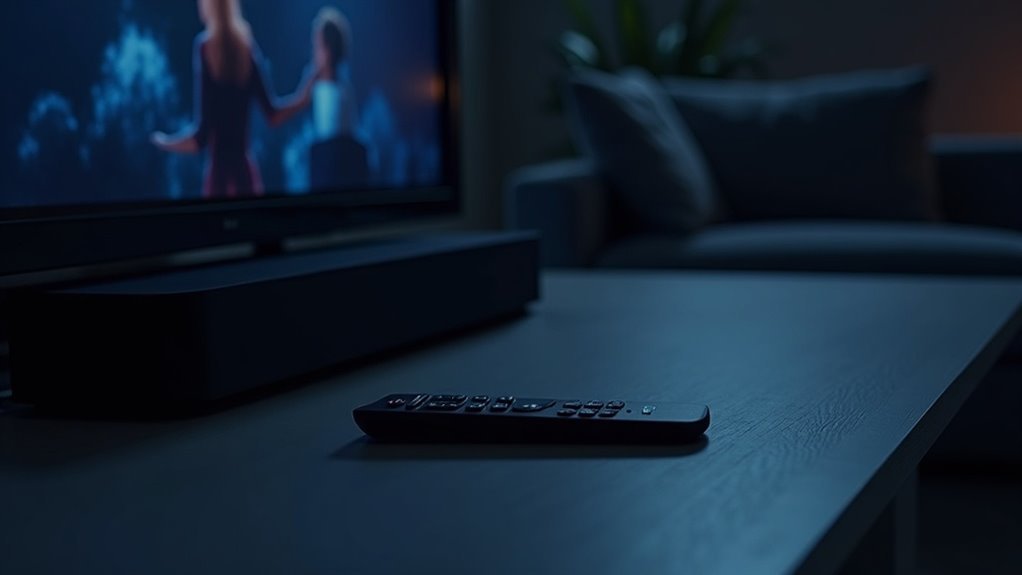
Yes, a soundbar works seamlessly with Harmony remotes, enhancing your overall home entertainment experience. Most soundbars, including popular models from Vizio, are compatible and can be easily configured using the My Harmony software. You can effortlessly add devices and set up activities without the need for discrete codes. If you come across a soundbar that isn’t recognized, you have the option to utilize the IR learning feature to customize controls to your preference. Continue to enhance your audio experience; there’s always more to learn about setup and optimization for your soundbar.
Key Takeaways
- Many soundbars, including popular models like Vizio, are compatible with Harmony remotes.
- Harmony remotes simplify setup via My Harmony software, allowing easy integration with soundbars.
- Soundbars operate using IR commands, requiring accurate aiming for effective control.
- If a soundbar isn’t listed, Harmony remotes can learn commands from the original remote of the soundbar.
- Users can customize activities to manage soundbars seamlessly alongside other devices.
Understanding Harmony Remotes and Soundbars
When you’re looking to enhance your home entertainment setup, understanding soundbars is essential.
Soundbars, like the popular Vizio models, streamline your audio experience by delivering high-quality sound without the clutter of multiple speakers. They often integrate seamlessly with devices like Harmony remotes, allowing you to control everything from one convenient interface.
Soundbars utilize IR commands for operation, so it’s important to aim accurately for optimal performance. If you’re using a Harmony remote, you can easily configure it through the Harmony software, which searches for compatible soundbars in its extensive database.
Should your specific soundbar not be listed, you can utilize the IR learning feature to transfer commands from its original remote, enabling custom button assignments. This flexibility not only enhances your audio experience but also ensures a user-friendly setup.
Compatibility of Soundbars With Harmony Remotes
How do soundbars perform in terms of compatibility with Harmony remotes?
Generally, soundbars such as Vizio’s VSB200 and VSB210 are well-supported, significantly improving their functionality over using the original remotes.
Harmony remotes simplify the setup process through My Harmony software, enabling users to add devices and create activities without the need for discrete codes.
However, it’s important to note that the IR receiver on soundbars may require precise aiming, and responsiveness can vary.
Users frequently commend the sound quality and performance when utilizing Harmony remotes, as they enhance the home theater experience by seamlessly managing power sequences and sound functions.
Setting up Your Soundbar With Harmony
Setting up your soundbar with a Harmony remote can greatly enhance your home theater experience.
First, verify that your soundbar, especially popular models like Vizio, is compatible with the Logitech Harmony. Use the My Harmony software to input your soundbar’s manufacturer and model number, allowing it to search for a match.
Verify your soundbar’s compatibility with Logitech Harmony using My Harmony software for seamless setup and control.
If it doesn’t find one, you can manually train the Harmony remote using your soundbar’s original remote. Adjust your Harmony settings to include the soundbar in your activities, ensuring correct device control.
Finally, sync your remote to apply the changes and test everything to confirm proper functionality. This setup process is essential for maximizing the performance and convenience of your soundbar in your home entertainment system.
Learning Commands for Your Soundbar
To effectively learn commands for your soundbar using the Harmony remote, start by connecting it to your computer and enabling IR learning.
Position your soundbar remote close to the Harmony remote, pressing the buttons you want to teach.
After completing the command training, remember to sync your changes to guarantee everything functions smoothly with your soundbar.
Command Training Process
While setting up your Harmony remote to control your soundbar, you’ll need to teach it the specific commands from your soundbar’s original remote.
Start the command training process by connecting the Harmony remote to your computer via USB and launching the My Harmony software. Follow prompts to enable IR learning, positioning the soundbar’s remote about three inches away.
Press each button to transfer commands, skipping buttons that aren’t relevant to your soundbar’s functions. Adjust the repeat count in settings to prevent unintentional multiple signals.
Finally, sync all settings and test the functionality to ensure proper control of your soundbar.
Adjusting Command Settings
How can you guarantee your Harmony remote effectively communicates with your soundbar?
Start by connecting your Harmony remote to your computer via a USB data cable and initiate IR learning specifically for your soundbar. Position your soundbar’s remote about three inches away to ascertain ideal signal transmission.
Focus on essential buttons that control your soundbar’s functions, skipping unnecessary ones. Adjust the repeat count for critical functions like power on/off to zero, preventing accidental multiple signals.
After learning the commands specific to your soundbar, sync your changes back to the Harmony remote.
Finally, verify that all learned commands work correctly before finalizing your settings for a seamless audio experience with your soundbar.
Adjusting Settings for Optimal Performance
When you adjust the settings on your Harmony remote, you’ll enhance the performance of your soundbar considerably. Here are key steps to follow:
- Set the repeat count for power commands to zero to prevent multiple signals that could disrupt your soundbar.
- Sync changes to ensure all adjustments are applied effectively, optimizing your soundbar’s functionality.
- Test commands associated with your soundbar for responsiveness before adding them to your activities, ensuring seamless operation.
- Edit activity settings to include your soundbar’s model number for precise control and compatibility.
- Set input requirements for activities to assure proper responses when switching between devices connected to your soundbar.
These adjustments will optimize your Harmony remote and soundbar experience, enhancing your audio enjoyment safely and efficiently.
Finalizing Your Harmony Remote Setup
To ensure your soundbar is fully integrated with your Harmony remote, begin by adjusting the activity settings to include the soundbar in each relevant setup.
Be sure to configure the correct input requirements for activities that involve the soundbar, enabling smooth operation. After making these adjustments, sync all changes to update your Harmony remote with the new settings.
It’s important to test each activity with the soundbar to verify that all commands are executed properly and that the soundbar responds as intended.
Additionally, consider modifying the repeat count for commands to prevent sending multiple signals that could interfere with the soundbar’s IR receiver functionality.
Enhancing Your Audio Experience With Harmony
Integrating your soundbar with a Harmony remote not only simplifies your audio control but also elevates your overall audio experience.
With Harmony remote controls, you’ll enjoy seamless access to your soundbar’s features, including:
- Effortless volume adjustments
- Streamlined device management (soundbar, TV, DVR)
- Automatic configuration without codes
- Enhanced responsiveness through command settings
- Compatibility with popular soundbar models
Users often discover that the Harmony remote manages soundbar functions more effectively than the original remote, making it a valuable addition to your soundbar setup.
Enhance your audio experience today by utilizing the power of Harmony.







