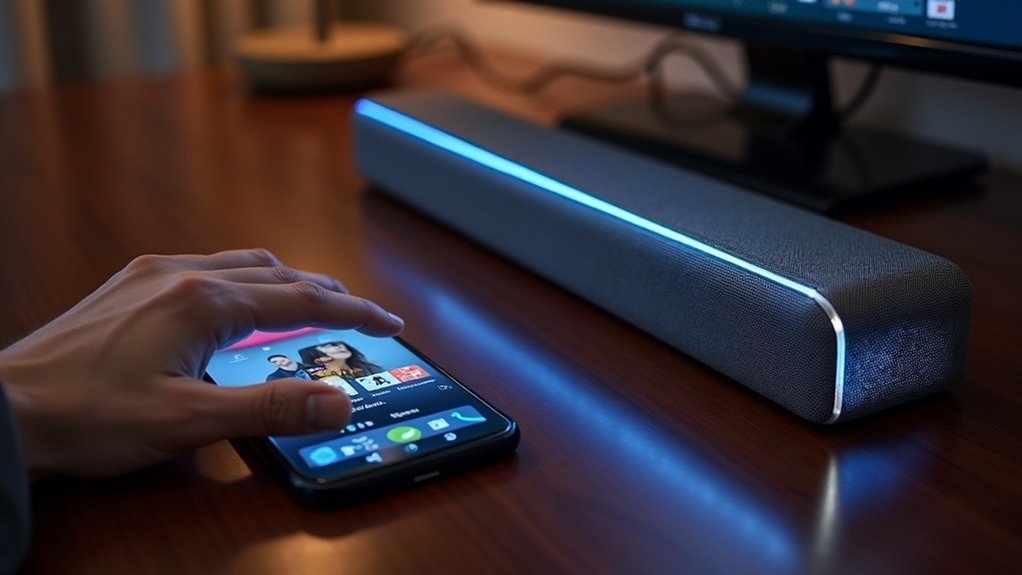
To stream from your phone to a soundbar using DLNA, first ensure that both your phone and soundbar are DLNA-compatible and connected to the same Wi-Fi network. Next, download a compatible app, such as BubbleUPnP or AirAudio. Once the app is installed, select your soundbar as the target device. You can then browse your music library within the app, choose your desired audio files, and initiate playback. Control playback directly from your phone for a seamless audio experience, and discover additional features that can enhance your soundbar’s performance.
Key Takeaways
- Ensure both your phone and soundbar are connected to the same Wi-Fi network, and confirm that your soundbar is DLNA-compatible for optimal performance.
- Download a DLNA-compatible app such as BubbleUPnP or AirAudio to enable seamless media streaming from your phone to your soundbar.
- Within the app, browse your media library and select the audio files you wish to stream to your soundbar for an enhanced listening experience.
- Check that the audio formats you plan to use are supported by your soundbar to ensure the best playback quality.
- Use the app to control playback functions like play, pause, and volume directly from your smartphone, allowing for convenient management of your soundbar’s audio output.
Understanding DLNA and Its Benefits
When you want to stream media from your phone to a soundbar, understanding DLNA (Digital Living Network Alliance) is essential.
DLNA is a set of guidelines that enables seamless sharing and streaming of digital media over a network. It guarantees interoperability between devices like smartphones and soundbars, allowing you to stream audio without direct connections.
DLNA facilitates smooth digital media sharing, ensuring devices like smartphones and soundbars work together effortlessly for seamless audio streaming.
Operating over standard home networking protocols like Wi-Fi, DLNA supports multiple formats and codecs, ensuring high-quality audio playback through your soundbar.
Additionally, it allows remote control of DLNA-capable devices, letting you browse and select content from your phone while it plays through the soundbar, enhancing your overall audio experience.
Checking Device Compatibility
To stream audio from your phone to a soundbar, you must first check for device compatibility. Ensure that both your phone and soundbar support DLNA standards for seamless streaming.
Consult your soundbar’s specifications or user manual to confirm DLNA compatibility, as most modern soundbars include this feature. Additionally, verify your phone’s operating system; many Android devices have built-in DLNA capabilities, while iOS users may need to download third-party apps.
For efficient streaming, consider using a DLNA-compatible app such as BubbleUPnP or AllCast. Remember, both your phone and soundbar must be connected to the same Wi-Fi network for proper communication.
Connecting to the Same Wi-Fi Network
Connecting your phone and soundbar to the same Wi-Fi network is vital for effective streaming. First, ensure that both devices are connected to the same network, as this enables seamless communication.
It’s important to confirm that your soundbar is DLNA-compatible and that the DLNA server is activated on your phone for media sharing.
To enhance your soundbar experience, consider using a third-party app like BubbleUPnP or AirAudio, which can facilitate high-quality audio streaming.
Additionally, verify that both devices have the necessary permissions to access each other’s media libraries. This step is crucial for smooth playback and uninterrupted streaming of your favorite audio content through your soundbar.
Downloading a DLNA-Compatible App
After ensuring your phone and soundbar are on the same Wi-Fi network, the next step is downloading a DLNA-compatible app like BubbleUPnP or AirAudio from your device’s app store.
These apps facilitate seamless streaming between your phone and soundbar, enhancing your audio experience. Once installed, open the app and navigate to the settings to select your soundbar as the target device for audio output.
Use the app’s interface to browse your music library and select the audio files you want to play through your soundbar. Most DLNA apps also allow for remote control functionalities, enabling you to pause, skip, or adjust volume directly from your phone, giving you full control over your soundbar’s performance.
Selecting Your Soundbar
When selecting your soundbar, prioritize compatibility with your phone’s operating system and ensure it supports the necessary audio formats for ideal playback.
Look for models with wireless connection options like built-in Wi-Fi, which streamline the setup process.
Additionally, consider soundbars with multiple input options to enhance your audio versatility.
Soundbar Compatibility Requirements
To guarantee seamless streaming from your phone to a soundbar, start by selecting a model that meets specific compatibility requirements.
Ensure your soundbar is DLNA-compatible; this allows it to communicate and stream audio content over your network. Check the specifications for built-in support for streaming protocols like UPnP or DLNA, as not all soundbars include this functionality.
Both your phone and soundbar must be on the same Wi-Fi network for smooth audio streaming. Additionally, choose soundbars that support various audio formats to ensure compatibility with different media types.
For detailed compatibility information, consult the user manual or the manufacturer’s website.
Wireless Connection Options
Selecting the right soundbar for wireless streaming involves understanding the various connection options available. Here’s what to take into account:
- Wi-Fi Network: Ensure both your phone and soundbar are connected to the same Wi-Fi network for seamless streaming.
- DLNA Support: Verify if your soundbar supports DLNA, which can typically be found in the user manual or on the manufacturer’s website.
- Compatible Apps: Utilize apps like BubbleUPnP or AllConnect to easily select your soundbar for playback.
- Settings and Updates: Navigate to the soundbar’s settings to enable network streaming and check for software updates to ensure optimal performance.
Audio Format Support
Understanding audio format support is essential for guaranteeing ideal playback when streaming from your phone to a soundbar. Check that your soundbar supports common formats like MP3, AAC, FLAC, and WAV for maximum compatibility.
Don’t overlook sample rates and bit depths, as high-end soundbars can handle 24-bit/192kHz audio. Be mindful of codec limitations; if your files use formats like DSD or ALAC, confirm your soundbar’s decoding capabilities.
Also, not all DLNA-compatible soundbars work with every app, so verify that your media applications, like YouTube and Spotify, align with the soundbar’s DLNA functions.
Always consult the user manual for specifics to ensure optimal performance.
Browsing and Choosing Music
To browse and choose music for streaming through your soundbar, start by ensuring your phone and soundbar are on the same Wi-Fi network.
Use a DLNA-compatible app like BubbleUPnP or Two Player to access your music library or media server.
Navigate through your collection to find your preferred tracks that will enhance your soundbar experience.
Once you select a song, direct the audio to your soundbar and control playback directly from your phone for the best audio performance.
Selecting Media Sources
When streaming your favorite tracks from your phone to a soundbar, it’s essential to ensure that both devices are connected to the same Wi-Fi network.
Follow these steps to select your media source for optimal sound quality:
- Open a compatible DLNA app, such as the Two Player app.
- Navigate to the media source options within the app.
- Select your phone as the local source or choose a media server that contains your music library.
- Find your desired music files and start playback directly from the app.
This process enables you to enjoy high-quality audio from your soundbar while controlling playback from a distance, enhancing your overall listening experience.
Navigating Music Library
How can you efficiently navigate your music library when streaming from your phone to a soundbar?
First, ensure that both your phone and soundbar are connected to the same Wi-Fi network.
Next, open a DLNA-compatible app such as Two Player or BubbleUPnP. From there, select the media server option to browse your music collection, organized by artist, album, or genre.
When you find a song or album you wish to listen to, simply tap on it to start playback.
Lastly, make sure your soundbar is set to the correct input source to enjoy high-quality audio from your selected tracks seamlessly.
This way, you can maximize your soundbar experience while effortlessly navigating your music library.
Initiating Playback and Enjoying Audio
Once you’ve set up your devices on the same Wi-Fi network, you’re ready to initiate playback and enjoy your soundbar’s audio performance.
Follow these steps:
- Open a DLNA-compatible app like BubbleUPnP or AllConnect on your smartphone.
- Browse and select the media you want to play from your device or connected server.
- Choose your soundbar from the list of available DLNA devices in the app.
- Once connected, control playback functions like play, pause, and skip directly from your phone.
Make sure your soundbar supports DLNA and is configured correctly for optimal streaming performance.
Enjoy your enhanced audio experience with your soundbar!







