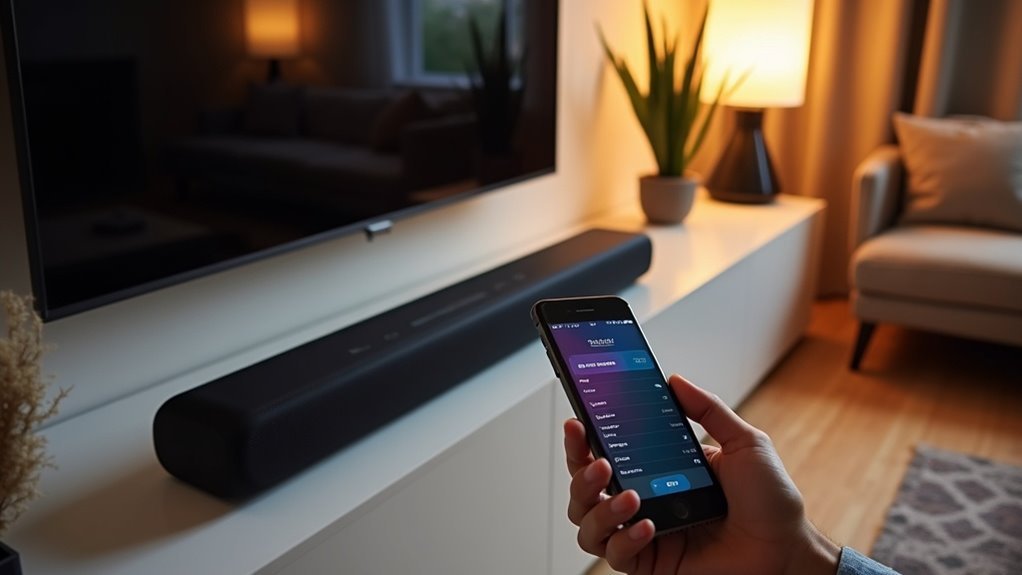
To forget Bluetooth devices on your soundbar, first power it on and use your remote control to navigate to the settings menu. Look for the “Connections” section and access the Bluetooth options. From the list of paired devices, find the one you wish to remove and select it. Confirm the deletion when prompted; you should hear a tone or see a confirmation message. Managing your Bluetooth connections can enhance your soundbar’s performance, and there’s plenty of additional information available on this topic.
Key Takeaways
- Power on your soundbar and access the settings menu using the remote or onboard buttons.
- Navigate to the “Connections” section and select the Bluetooth options to view the list of paired devices.
- Identify the device you wish to forget by reviewing the names in the paired list.
- Select the device and confirm the action to delete it; look for a confirmation message indicating the device has been removed.
- Check the paired devices list again to ensure the device has been successfully forgotten from your soundbar.
Understanding Bluetooth Device Memory
Bluetooth device memory is crucial for the optimal performance of your soundbar. It enables your soundbar to remember paired Bluetooth devices, facilitating quick reconnections.
Typically, soundbars can store between 5 to 8 paired devices, making effective memory management important. Removing a device creates space for new connections and can improve performance by reducing interference.
When you forget or unpair a device, it’s entirely removed from the memory, allowing for a fresh start. Regularly managing your Bluetooth memory also helps maintain secure connections, preventing unauthorized access to your soundbar.
Steps to Access Bluetooth Settings
To access the Bluetooth settings on your soundbar, begin by powering it on and ensuring it’s within proximity of your paired devices.
Utilize the remote control or the buttons on the soundbar to navigate to the settings menu.
Once there, locate the “Connections” section to find the Bluetooth options.
Locate Bluetooth Menu
Accessing the Bluetooth settings on your soundbar is a straightforward process.
First, power on your soundbar and grab the remote control. Navigate to the “Settings” menu, where you’ll find various options tailored for your soundbar.
Select “Connections” to locate the Bluetooth settings specific to your soundbar.
Once you’re in the Bluetooth menu, you’ll see a list of Bluetooth devices that are currently paired with your soundbar.
Highlight the specific device you want to manage, and use the remote to access its settings.
Confirm your selection to proceed with any actions you want, like unpairing that device from your soundbar.
Navigate Settings Options
Maneuvering the settings on your soundbar is a straightforward process that allows you to manage your Bluetooth connections efficiently.
Begin by accessing the main Settings menu using your remote control or the onboard buttons. Look for the “Connections” or “Bluetooth” option, depending on your soundbar’s specific interface.
Once you enter the Bluetooth menu, you’ll see a list of all paired devices connected to your soundbar. To manage these connections, select the device you wish to forget, typically indicated by a cogwheel icon.
Finally, confirm the deletion by selecting “Unpair” or “Forget Device” at the bottom of the settings menu.
Identifying Paired Devices to Forget
How can you quickly identify paired devices on your soundbar? Start by accessing the Bluetooth settings through the soundbar’s menu.
Here, you’ll find a list displaying the product memory of paired devices currently connected. Look for the specific device you want to forget by checking the names in the paired list.
It’s important to recognize which devices are linked, as this helps you manage your soundbar’s connectivity effectively. Regularly reviewing this list not only enhances your soundbar’s performance but also prevents unauthorized access, ensuring a smoother user experience.
Once you’ve identified the device, you’re ready to proceed with deletion.
Confirming Device Deletion
After you select a device to forget on your soundbar, you’ll usually see a confirmation message displayed on the screen.
Sometimes, you might also hear a tone indicating the device has been successfully deleted.
To ensure everything worked correctly, check the list of paired devices on your soundbar to confirm that your intended device is no longer listed.
Confirmation Notification Message
When you delete a Bluetooth device from your soundbar, a confirmation notification message will briefly appear on the display, indicating that the action was successful.
This message confirms that the selected device has been removed from your paired list, allowing you to manage your devices more effectively.
If you don’t see this confirmation message, it may suggest an issue with the deletion process that needs your attention.
In such cases, revisit the Bluetooth settings to ensure that the device no longer appears in the list.
This step helps ensure clarity and confidence in your soundbar’s connectivity.
Tone Indication Signal
Once you’ve successfully deleted a Bluetooth device from your soundbar, you’ll hear a tone indicating that the action was completed. This confirmation tone serves as an audible reassurance that the device has been forgotten. If you don’t hear the tone, it might mean the deletion was unsuccessful, so you should try again. Listening for this tone is essential for managing your soundbar’s Bluetooth memory effectively.
| Action | Soundbar Response | Next Steps |
|---|---|---|
| Delete Device | Confirmation Tone | Proceed with confidence |
| Deletion Unsuccessful | No Tone | Retry the process |
| Device Forgotten | Confirmation Tone | Add new devices |
| Pairing New Device | Confirmation Tone | Enjoy your audio |
| Manage Bluetooth Memory | Confirmation Tone | Keep devices organized |
Verification of Successful Deletion
To confirm that a Bluetooth device has been successfully deleted from your soundbar, check for both a visual and auditory cue. A confirmation message should briefly appear on the display of your soundbar, indicating that the action has been completed.
You might also hear a tone, which serves as an audible confirmation that the device has been removed from the pairing list.
Afterward, revisit the Bluetooth settings on your soundbar to verify that the device no longer appears. If it still shows the device, the deletion was unsuccessful, and you’ll need to repeat the unpairing process.
Proper confirmation helps streamline connections and prevents unwanted reconnections in the future.
Benefits of Managing Bluetooth Connections
Managing your Bluetooth connections on your soundbar not only keeps your device secure but also enhances its overall performance. Regularly clearing the device memory by deleting unused connections helps prevent unauthorized access and reduces potential interference.
Here are three key benefits:
- Improved Performance: Removing old connections frees up memory, allowing your soundbar to operate more efficiently and deliver better audio quality.
- Simplified Pairing: A streamlined list of paired devices makes it quicker and easier to connect new devices when needed, enhancing your user experience.
- Enhanced Sound Quality: An updated connection list ensures a stable, reliable link, which significantly improves your overall listening experience.
Stay organized and enjoy a superior soundbar experience!
Troubleshooting Common Bluetooth Issues
Bluetooth connectivity issues with soundbars can be frustrating, especially when you’re trying to enjoy your favorite music or shows.
If you can’t find Bluetooth settings on your soundbar, refer to the user manual or the manufacturer’s website for guidance.
If a paired device doesn’t show up, ensure it’s powered on and within range, and try rebooting both devices.
If you encounter difficulties in deleting a device, restart the soundbar and attempt the process again.
For unresponsiveness, unplug the soundbar for a few seconds.
If problems persist, consider resetting to factory settings to clear device memory and resolve connectivity issues.







