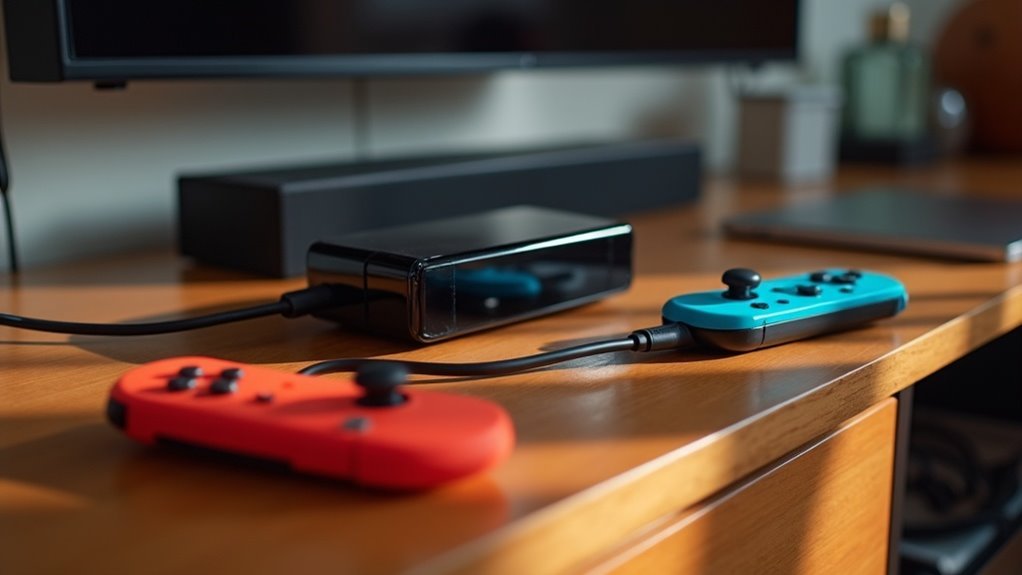
To connect a soundbar to your Nintendo Switch dock, you’ll need two HDMI cables. Start by connecting one cable from the HDMI OUT port on the Switch dock to the HDMI IN port on your soundbar. Then, take the second HDMI cable and connect the HDMI OUT port on the soundbar to your TV. Ensure that your soundbar is set to the correct input for optimal audio output. For the best audio experience while gaming, adjust your Nintendo Switch’s audio settings to Linear PCM 5.1 Surround. Additionally, there are various ways to enhance your sound setup and troubleshoot any potential issues you may encounter.
Key Takeaways
- Connect the HDMI OUT port of the Switch dock to the HDMI IN port of your soundbar using an HDMI cable.
- Use a second HDMI cable to connect the HDMI OUT port of the soundbar to your TV.
- Make sure to select the appropriate HDMI input source on the soundbar for audio playback.
- For enhanced sound quality, adjust the Nintendo Switch’s audio settings to Linear PCM 5.1 Surround.
- Verify that your TV is set to the HDMI source that matches the soundbar’s connection.
Required Equipment for Connection
To successfully connect your soundbar to a Nintendo Switch dock, you’ll need a couple of essential pieces of equipment.
First, grab an HDMI cable to link the dock to the soundbar’s HDMI IN port. This setup guarantees your sound system receives audio from the Switch.
Next, use a second HDMI cable to connect the soundbar’s HDMI OUT port to your TV’s HDMI input for video output.
If your soundbar supports HDMI ARC, you can enjoy enhanced audio features for a superior listening experience.
However, if your soundbar lacks HDMI capability, a 3.5mm audio cable can serve as an alternative for sound connection, ensuring you still get great sound quality while gaming.
Connecting the Soundbar to the Switch Dock
Connecting your soundbar to the Nintendo Switch dock is a straightforward process that significantly enhances your audio experience during gaming.
To get started, use an HDMI cable to connect the HDMI OUT port on the Switch dock to the HDMI IN port on your soundbar.
Connect the HDMI OUT port from the Switch dock to the soundbar’s HDMI IN port to begin enhancing your audio experience.
Next, take another HDMI cable and connect the HDMI OUT port on your soundbar to an available HDMI input on your TV.
Ensure that your soundbar is set to the correct HDMI input source to receive audio from the Nintendo Switch.
If your soundbar supports 5.1 surround sound, be sure to configure the Nintendo Switch’s audio settings to Linear PCM 5.1 Surround for optimal audio output.
Enjoy the immersive sound experience that a soundbar can provide while gaming!
Setting Up the TV for Soundbar Output
To achieve the best audio experience with your soundbar while using your Nintendo Switch, it’s essential to select the correct HDMI source on your TV.
Ensure your TV is set to the HDMI input connected to the soundbar.
Following this, adjust the audio settings on your Switch to direct sound through the soundbar, maximizing your audio performance.
Selecting HDMI Sources
How do you ensure your soundbar provides optimal audio while gaming on the Nintendo Switch? Start by connecting the soundbar’s HDMI IN port to the Switch dock. Then, connect the HDMI OUT port of the soundbar to an HDMI input on your TV. Use your TV remote to select the correct HDMI input for peak sound performance. Lastly, make sure to adjust your TV’s audio output settings to route sound through the soundbar instead of the TV speakers. Balance the volume on both devices for an enhanced gaming experience.
| Step | Action | Notes |
|---|---|---|
| 1 | Connect HDMI IN | From Switch dock |
| 2 | Connect HDMI OUT | To TV’s HDMI input |
| 3 | Select HDMI Input | Use TV remote |
| 4 | Adjust Audio Settings | Set to soundbar output |
Adjusting Audio Settings
After selecting the appropriate HDMI sources, it’s essential to adjust the audio settings to ensure your soundbar provides the optimal sound experience while gaming.
Begin by accessing the Nintendo Switch’s System Settings and selecting TV Sound to direct audio through the soundbar. If you’re using an AV receiver, ensure it’s set to the correct input channel for seamless audio output.
For the best audio experience, configure your soundbar to Linear PCM 5.1 Surround. Lastly, balance the volume levels on both the soundbar and your Nintendo Switch for a harmonious sound.
Don’t forget to check for any system updates that could further enhance your audio settings for improved performance with your soundbar.
Configuring Audio Settings on the Nintendo Switch
When you’re ready to enjoy your soundbar with your Nintendo Switch, you’ll need to configure the audio settings for the best sound experience. Start by heading to System Settings from the HOME Menu and selecting the Audio option. Under Audio Output, choose “TV Sound” to direct audio to your sound system. If your setup supports it, select “Linear PCM 5.1 Surround” for an immersive sound experience. Ensure your Switch is docked and connected via HDMI for optimal audio performance. If you’re using Bluetooth audio, keep in mind that only one device can connect at a time.
| Audio Setting | Description |
|---|---|
| TV Sound | Directs audio to sound system |
| Linear PCM 5.1 Surround | Surround sound for enhanced audio |
| HDMI Connection | Required for audio settings to apply |
| Bluetooth Connection | Only one device can connect |
| System Update | Confirm Switch is updated |
Troubleshooting Common Audio Issues
When you’re trying to enjoy audio from your Nintendo Switch through a soundbar, you might encounter a few common issues.
The HDMI audio override can sometimes prevent sound from being transmitted to your soundbar, which can be frustrating.
Fortunately, there are simple solutions to resolve this problem, such as using a Bluetooth transmitter or ensuring that your soundbar’s settings are correctly configured.
Bluetooth Connection Limitations
While it’s tempting to connect your soundbar to the Nintendo Switch for a more immersive gaming experience, you’ll quickly discover that the console doesn’t support Bluetooth audio output when docked.
Instead, sound defaults to HDMI, overriding any Bluetooth connections. You can connect soundbars in handheld mode, but shifting to docked mode often leads to audio disruptions.
To work around this limitation, consider using an optical audio extractor or an HDMI audio splitter. Staying updated with the latest system update on Nintendo can also help, but understanding these audio output limitations is key for effective gaming audio solutions.
HDMI Audio Override Issues
If you’re experiencing audio output issues with your soundbar while your Nintendo Switch is docked, it’s crucial to understand how HDMI audio override can impact your connection.
When docked, the Switch defaults to HDMI, which may interfere with Bluetooth audio connections, resulting in no sound if you’re using a monitor without built-in speakers.
To troubleshoot HDMI audio override issues, ensure that your soundbar is connected to the dock’s HDMI Out port and that the correct input is selected on your soundbar.
If issues continue, consider performing a system update on your Switch to resolve any potential software glitches that might be affecting the audio output to your soundbar.
Workaround Solutions Available
Resolving audio issues with your soundbar while using the Nintendo Switch dock can often be achieved through various workaround solutions.
Here are some effective methods tailored for soundbar users:
- Connect a Bluetooth transmitter to the headphone jack of your Nintendo Switch for wireless audio output to your soundbar.
- Directly link your soundbar to the TV via HDMI ARC, ensuring that you configure the audio output settings correctly on both devices for optimal sound.
- Utilize an optical audio cable from the TV to the soundbar for a reliable and high-quality audio connection.
- Route sound through an AV receiver to manage multiple audio sources and enhance the overall sound quality of your setup.
For further assistance, be sure to explore external guides and community forums dedicated to soundbars to troubleshoot any persistent audio issues you may encounter.
Alternative Audio Output Solutions
To enhance your audio experience with soundbars while using the Nintendo Switch, exploring alternative audio output solutions can be beneficial, especially since the dock primarily relies on HDMI for sound.
One option is to connect a Bluetooth transmitter to the Switch’s headphone jack, allowing you to wirelessly connect to soundbars. Additionally, using an optical audio cable from your TV to the soundbar can bypass HDMI limitations, ensuring seamless audio whether docked or undocked.
Many soundbars offer multiple input options, providing flexibility in routing your audio. Finally, consider incorporating an AV receiver to maintain high-quality surround sound while connecting various devices to your soundbar setup.
Enhancing Your Gaming Experience With Surround Sound
As you immerse yourself in your favorite Nintendo Switch games, enhancing your experience with a soundbar can elevate your gameplay to new heights.
Enhance your Nintendo Switch gameplay experience by elevating your audio with a soundbar for immersive adventures.
Here’s how a soundbar can transform your gaming experience:
- Immersive Audio: Enjoy rich, clear sound that complements stunning visuals, making every moment more captivating.
- Directional Cues: Benefit from subtle audio signals that can improve your gameplay performance and awareness.
- Easy Setup: Utilize HDMI ARC technology for straightforward connections and convenient volume control without hassle.
- Advanced Formats: Experience Dolby Atmos for an enhanced spatial audio environment that brings your games to life.
Upgrading to a soundbar not only enhances your audio experience but also ensures that every game feels like an unforgettable adventure!







