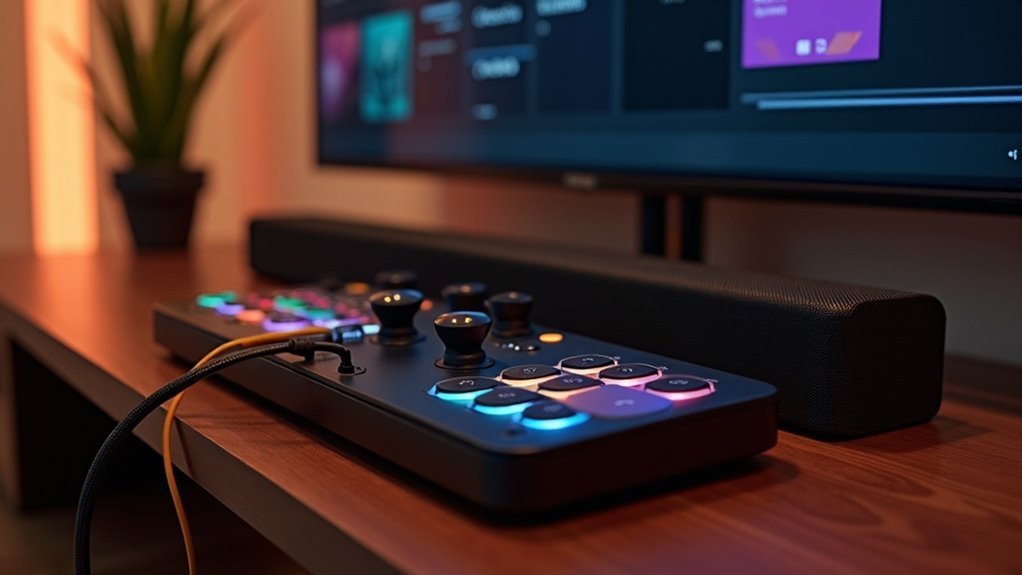
To connect your soundbar to a Steam Deck, ensure that the soundbar is powered on and set to the appropriate input, either HDMI ARC or optical. For an HDMI connection, simply plug the soundbar into the Steam Deck’s dock using an HDMI cable. Alternatively, you can connect via Bluetooth by putting the soundbar in pairing mode, enabling Bluetooth on your Steam Deck, and selecting it from the list of available devices. For an optimal audio experience, adjust the audio settings to route sound through the soundbar. Explore additional tips for enhancing your soundbar’s performance.
Key Takeaways
- Make sure the soundbar is powered on and set to the appropriate input mode (HDMI ARC or optical) before making any connections.
- For the best audio quality, connect the soundbar’s HDMI ARC port to the Steam Deck docking station using an HDMI cable.
- If your soundbar lacks HDMI, opt for an optical audio cable to ensure high-quality sound transmission.
- For those who prefer a wireless setup, enable Bluetooth on the Steam Deck and pair it with the soundbar.
- To ensure an optimal gaming experience, adjust the audio settings on the Steam Deck to designate the soundbar as the primary audio output device.
Preparing Your Soundbar for Connection
Before you start connecting your soundbar to the Steam Deck, make sure it’s powered on and set to the correct input mode, typically HDMI ARC or optical.
If your soundbar supports HDMI ARC, use an HDMI cable to connect the Steam Deck docking station to it, allowing for audio transmission and control.
For optimal audio transmission and control, connect your Steam Deck dock to your soundbar using an HDMI ARC cable.
For soundbars without HDMI, connect an optical audio cable from the Steam Deck dock to the optical input on the soundbar for high-quality sound.
Always consult your soundbar’s manual for specific instructions on input settings and connection options to ensure optimal audio performance with the Steam Deck.
Connecting via Bluetooth
Connecting a soundbar to your Steam Deck via Bluetooth is a straightforward process that enhances your audio experience while gaming.
To begin, ensure your soundbar is in pairing mode, typically indicated by a blinking light.
Next, access the “Settings” on your Steam Deck, select “Bluetooth,” and enable Bluetooth to scan for available devices.
When your soundbar appears in the list, select it to initiate pairing, confirming any required codes if prompted.
After successfully pairing, adjust the audio output settings on the Steam Deck to ensure the soundbar is set as your primary audio device.
If you encounter any issues, verify that the soundbar is within range and not connected to another monitor or TV.
Enjoy rich, immersive sound with your new setup!
Connecting via HDMI
If you want to elevate your audio experience while gaming, connecting your soundbar to the Steam Deck via HDMI is a fantastic option. Here’s how to do it:
| Step | Action |
|---|---|
| 1. Connect HDMI cable | Use a compatible HDMI cable to connect your soundbar’s HDMI ARC or OUT port to the dock. |
| 2. Dock the Steam Deck | Ensure the Steam Deck is securely docked for optimal performance. |
| 3. Switch input | Change your monitor or TV input to the correct HDMI port. |
| 4. Check audio settings | Make sure the audio output is set to the HDMI device in the settings. |
Now you’re all set for an immersive audio experience while gaming with your soundbar!
Adjusting Audio Settings on Steam Deck
After connecting your soundbar via HDMI, the next step is to ensure that the audio settings on your Steam Deck are optimized for the best sound experience.
After connecting your soundbar via HDMI, optimize your Steam Deck’s audio settings for an enhanced sound experience.
Here’s how to adjust them:
- Press the Steam button to access the Quick Access Menu.
- Select “Settings,” then navigate to “Audio.”
- Choose your soundbar as the output device, ensuring all audio is routed through it for enhanced sound quality.
- Adjust the audio output settings to align with your soundbar’s specifications, including enabling spatial audio if your soundbar supports it, to elevate your audio experience.
Troubleshooting Connection Issues
When experiencing issues with your soundbar connection to the Steam Deck, it’s essential to verify everything is set up correctly.
First, ensure your soundbar is powered on and set to the appropriate input source. Check the HDMI or optical cables connecting the Steam Deck to the soundbar; they must be securely plugged in.
If you’re using Bluetooth, confirm that the soundbar is in pairing mode and that the Steam Deck’s Bluetooth is enabled. Restart both devices to refresh their connection.
Finally, consult your soundbar’s user manual for any specific troubleshooting steps if no sound is produced.
Enhancing Your Audio Experience
To enhance your audio experience while gaming on the Steam Deck, selecting the right connection method for your soundbar is essential.
Here are some tips to maximize your sound quality with soundbars:
- Use a USB-C to HDMI adapter to connect your soundbar directly to the Steam Deck for optimal audio output.
- Ensure your soundbar is set to the appropriate input channel to achieve the best sound performance.
- If supported, connect your soundbar via Bluetooth for a convenient wireless setup.
- Opt for a soundbar with built-in surround sound capabilities to immerse yourself in the gameplay experience.
Exploring Additional Sound Options
While exploring sound options for your soundbar setup, you’ll discover various ways to enhance your audio experience beyond just a standard sound connection. Here’s a quick reference to help you choose the best method for integrating your soundbar:
| Connection Type | Benefits |
|---|---|
| HDMI | High-quality audio & video synchronization |
| Bluetooth | Wireless convenience for streaming music and gaming |
| Optical (via adapter) | Clear audio with minimal interference |
| Surround Sound Support | Immersive cinematic experience |
| Subwoofer Integration | Enhanced bass performance for a richer sound |
Adjust your audio output settings in the soundbar’s system settings to ensure optimal sound through your chosen connection.







