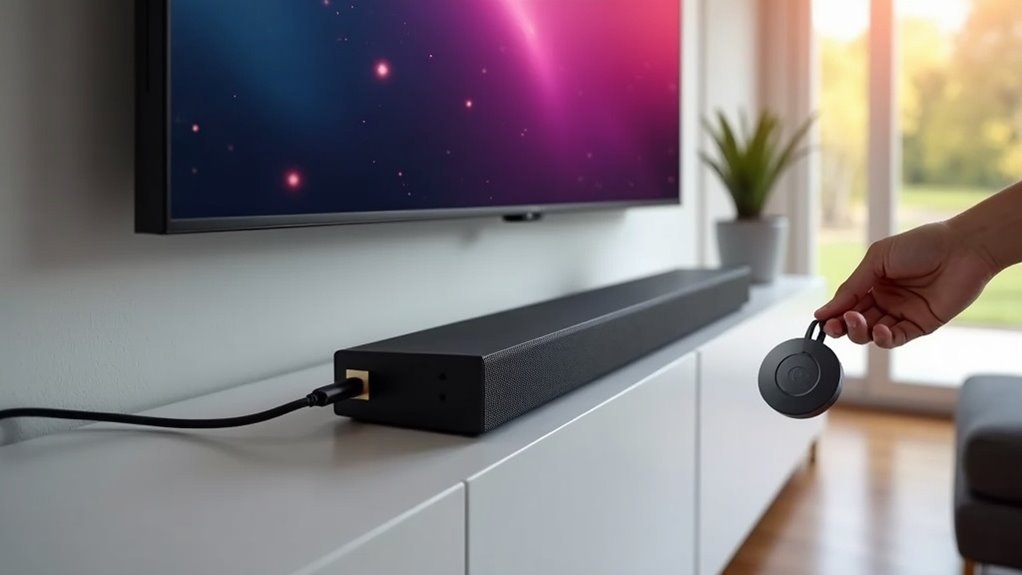
To connect your soundbar to Chromecast with Google TV, start by using an HDMI ARC connection for the best audio quality. If your soundbar doesn’t support HDMI ARC, you can opt for an optical cable or Bluetooth connection instead. Be sure to set your soundbar as the primary audio output in your TV settings to ensure optimal performance. Once everything’s connected and configured, you’ll significantly enhance your audio experience. Stay tuned for more insightful tips on maximizing your soundbar setup!
Key Takeaways
- Connect the soundbar to the TV using HDMI ARC for optimal audio quality and easy control.
- Set the soundbar as the primary audio output device in the TV’s settings.
- If using Bluetooth, ensure the soundbar is in pairing mode and connect it to the Chromecast.
- Verify that the Chromecast audio settings route sound through the connected TV.
- For wired connections, use an optical cable from the TV’s optical output to the soundbar.
Understanding Your Soundbar and Chromecast Compatibility
When connecting a soundbar to your Chromecast, it’s crucial to understand their compatibility.
A Chromecast with Google TV can connect to your soundbar via an HDMI cable, particularly if your soundbar supports HDMI ARC, such as the LG SK5. This configuration enables audio playback from the Chromecast through the TV.
Alternatively, you can opt for a Bluetooth connection for wireless streaming if your Chromecast model has Bluetooth capabilities.
However, if you’re using an older Chromecast that lacks Bluetooth support, a direct HDMI connection is necessary for soundbar compatibility.
Always ensure that your soundbar is set as the audio output device in your TV settings for the best audio experience.
Connecting Chromecast to Your Soundbar
Connecting your Chromecast to your soundbar can significantly improve your audio experience.
You have several options for connecting, including a direct HDMI connection, Bluetooth streaming, or an optical audio setup, depending on the capabilities of your soundbar.
Each method offers unique benefits, so let’s delve into these options to determine the best solution for your soundbar setup.
Direct HDMI Connection
To enjoy a seamless audio-visual experience with your soundbar, simply connect your Chromecast with Google TV directly to your soundbar using the HDMI in port.
Ensure that your Chromecast is powered and plugged into this port for simultaneous video and audio playback. After making the connection, set your soundbar as the audio output device in your TV settings to ensure sound is routed correctly.
If your soundbar features an HDMI ARC port, consider using it for enhanced audio performance.
While Bluetooth offers additional audio streaming options, a direct HDMI connection typically provides superior sound quality that enhances your overall experience with your soundbar.
Bluetooth Streaming Options
If you prefer the convenience of wireless audio, Bluetooth streaming with your soundbar can be an excellent choice. To establish a connection, ensure that both your soundbar and the device you want to connect are in pairing mode, and follow the on-screen instructions. Keep in mind that while Bluetooth offers flexibility, the audio quality may not be as high as that of wired connections, which could result in some loss of clarity in the highs.
| Step | Action |
|---|---|
| 1 | Enable Bluetooth on your soundbar |
| 2 | Access the settings on your device |
| 3 | Select “Pair Bluetooth Device” |
| 4 | Choose your soundbar from the available devices |
| 5 | Set the soundbar as your audio output |
Once connected, you can enjoy your audio wirelessly through your soundbar!
Optical Audio Setup
While setting up your soundbar for peak audio quality, using an optical audio connection can greatly enhance your viewing experience with devices like Chromecast with Google TV.
First, verify that your TV has an optical audio output and connect it to the soundbar’s optical input.
Next, configure your Chromecast to transmit audio through the TV, which will relay the signal to the soundbar.
Don’t forget to adjust your TV’s audio output settings to route sound to the soundbar instead of the internal speakers.
Finally, ensure that the soundbar is powered on and set to the correct input mode for maximum performance.
Setting up the Soundbar With Your TV
Connecting your soundbar to your TV is essential for achieving great audio quality, especially when using Chromecast. You can connect via HDMI ARC, optical cable, or a 3.5mm auxiliary input.
If you choose HDMI ARC, make sure to enable HDMI-CEC settings on both the soundbar and the TV for easier audio control.
For optical connections, link the TV’s optical output to the soundbar’s optical input for superior sound quality.
If you’re opting for a wireless connection, ensure your soundbar is in pairing mode and select it in the Chromecast settings.
Lastly, check your TV’s audio output settings to guarantee that sound is routed through the connected soundbar for an optimal listening experience.
Configuring Audio Output on Your TV
To achieve optimal sound quality from your soundbar, it’s essential to configure the audio output settings on your TV correctly.
Begin by selecting the soundbar as your primary audio device in the TV’s audio settings to ensure that sound is directed properly.
Additionally, verify your connections—whether you’re utilizing HDMI ARC, optical, or Bluetooth—to ensure peak performance from your soundbar.
Selecting Audio Output
When setting up your soundbar, it’s essential to select the correct audio output on your TV to enjoy high-quality sound.
Here’s how to ensure everything is configured properly:
- Connect your soundbar to the TV’s HDMI ARC port for optimal audio return.
- Access your TV’s audio settings and designate the soundbar as the default audio output device.
- Confirm that your Chromecast settings are configured to route audio through the connected TV.
If you experience audio issues, ensure your soundbar is powered on and set to the appropriate input source to receive sound from your TV.
Enjoy your audio experience with your soundbar!
Adjusting TV Settings
After selecting the right audio output on your TV, the next step is adjusting the settings to ensure optimal sound quality from your soundbar.
Begin by accessing your TV’s settings menu and confirming that the soundbar is designated as the primary audio output device. If you’re utilizing HDMI ARC, make sure to enable HDMI CEC for seamless communication between your TV and soundbar.
Additionally, verify that you’re connected to the correct HDMI port that supports ARC. For setups using optical connections, adjust the audio output settings to prioritize the optical port over the TV’s built-in speakers.
Lastly, don’t forget to regularly check for firmware updates, as these can significantly improve compatibility and performance with your soundbar.
Ensuring Proper Connections
Ensuring your soundbar is properly connected to your TV is essential for an ideal audio experience. Start by verifying the physical connection, then configure your TV’s audio output settings.
Here’s what to check for optimal soundbar performance:
- Ensure your soundbar connects via HDMI ARC, optical cable, or 3.5mm jack for the best compatibility.
- Set the soundbar as the default audio output device in your TV’s settings to enhance your listening experience.
- Experiment with different connection methods, such as Bluetooth or optical out, to discover which offers the best sound quality for your setup.
Troubleshooting Common Audio Issues
If you’re experiencing audio issues with your soundbar connected to Chromecast, it’s essential to check a few key settings and connections.
First, confirm your soundbar is properly connected to the TV via HDMI ARC or optical cable.
Next, verify that your TV’s audio output is set to the soundbar.
Don’t forget to check Chromecast settings; make sure audio is correctly configured.
If you’re using Bluetooth, confirm the soundbar is paired and set as the default audio output.
If problems persist, reboot all devices and double-check all physical connections to restore sound clarity.
For more tips on optimizing your soundbar experience, explore our resources dedicated to enhancing audio performance.
Exploring Alternative Connection Methods
When you want to enjoy superior sound from your soundbar, exploring alternative connection methods can significantly enhance your audio experience.
Here are a few effective options to consider:
- Connect your soundbar via the HDMI in port, allowing seamless audio routing through your TV for optimal sound quality.
- Utilize the optical output from your TV to send audio directly to the soundbar, ensuring your settings are correctly configured for the best performance.
- For a wireless option, pair your soundbar with Chromecast using Bluetooth, though it’s important to note that this may slightly impact sound quality.
These methods can help you achieve the best audio setup for your home entertainment system with your soundbar.







