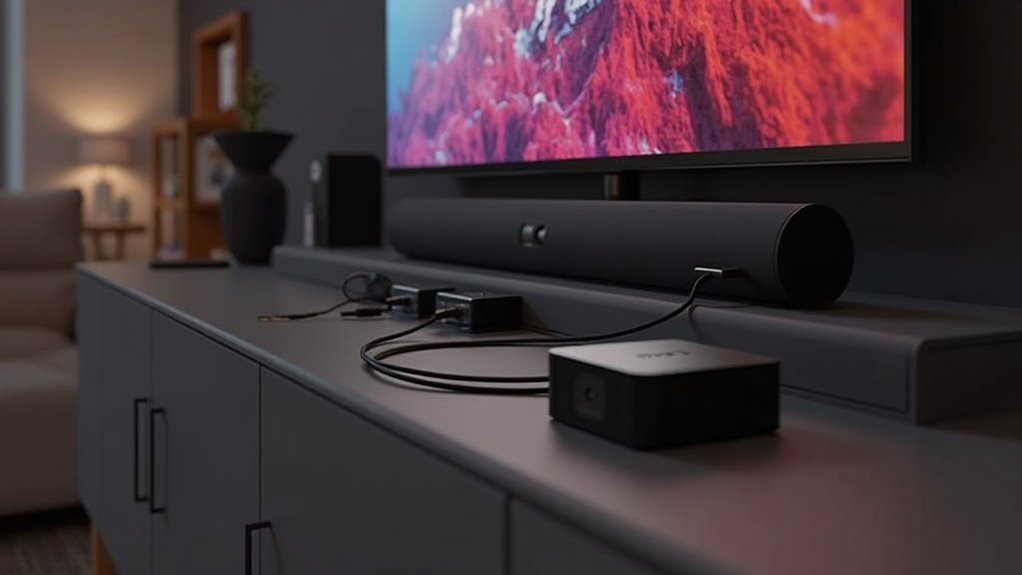
To connect your soundbar to the Fire TV Cube, first ensure your soundbar is powered on and ready to use. Connect the soundbar to your TV using an HDMI ARC or optical cable. During the setup of the Fire TV Cube, follow the on-screen prompts to add your soundbar, ensuring that it is in pairing mode. Once the connection is established, you can control the soundbar effortlessly with the Fire TV remote or through voice commands. For additional tips on optimizing your soundbar setup, continue exploring our resources!
Key Takeaways
- Ensure the soundbar is powered on and connected to the TV via HDMI ARC or optical cable for optimal audio performance.
- Activate the soundbar’s pairing mode to allow the Fire TV Cube to detect it during the setup process.
- During the Fire TV Cube setup, select the option to connect your soundbar and follow the on-screen prompts for a seamless integration.
- Utilize voice commands such as “Connect my soundbar” to link it with Alexa for easier management and control of your audio experience.
- If you encounter any connection issues, double-check all cable connections and restart both the soundbar and the Fire TV Cube to troubleshoot.
Preparing Your Soundbar for Connection
Before you dive into connecting your soundbar to the Fire TV Cube, ensure that your soundbar is powered on and positioned within a suitable range for a stable connection.
Check if your soundbar supports HDMI ARC or has Bluetooth capabilities for seamless audio integration. If using HDMI, connect it to the HDMI ARC port on your TV for optimal performance.
Ensure your soundbar supports HDMI ARC or Bluetooth for effortless audio integration and connect to the HDMI ARC port for best results.
For Bluetooth connectivity, activate pairing mode on your soundbar by pressing the designated button until the pairing indicator light illuminates.
Once your soundbar is in pairing mode, follow the on-screen prompts during the setup process to successfully add the soundbar, allowing you to enjoy high-quality audio and immersive sound experiences.
Initial Setup of the Fire TV Cube
To start the initial setup of your soundbar, power on the device and press the play/pause button on the remote to choose your preferred audio settings.
Next, connect to your TV or audio source using either an HDMI cable or an optical cable, and wait for any necessary updates to download.
Finally, adjust the sound settings to your liking and enjoy enhanced audio performance.
Booting and Language Selection
Once you power on your soundbar and press the power button on the remote, it will begin the initial setup process, leading you to select your preferred language from a list.
Choose the language that suits you best, and then the device may need to download necessary updates. This could involve multiple reboots to ensure everything is up to date.
Remember, for a stable audio experience, your soundbar should be connected to Wi-Fi or an Ethernet network if applicable.
Once updates are complete, you’ll have the option to connect to your streaming services or set up additional features.
Wi-Fi Connection Setup
As you begin the initial setup of your soundbar, connecting to Wi-Fi is essential for accessing streaming services and downloading necessary updates.
Select your Wi-Fi network and enter the password, or use the included USB to Ethernet adapter for a wired connection.
Once connected, your soundbar will automatically download system updates, which may cause it to reboot several times.
You can choose to skip sharing your Wi-Fi password with the manufacturer and set parental controls if needed.
After establishing the connection, select your preferred streaming services to start downloading necessary apps for first-time use.
Amazon Account Sign-In
Signing in to your Amazon account is an essential step in the initial setup of your soundbar. You can either use an existing account or create a new one via a code displayed on your TV. The process is user-friendly and includes account verification.
Here are some important points to reflect on:
- You can skip sharing your Wi-Fi password with Amazon if you prefer privacy.
- Setting up parental controls is available, allowing you to manage audio content access.
- The setup guides you step-by-step, ensuring a smooth registration and connection experience.
Get ready to enjoy your soundbar!
Adding Your Soundbar During Setup
When you set up your soundbar, you’ll have the option to connect it to your Fire TV Cube right away.
This step not only links the devices but also allows you to test the audio output immediately.
Plus, with voice control integration, you’ll be able to manage your soundbar effortlessly using Alexa commands, enhancing your overall viewing experience.
Soundbar Connection Steps
Connecting your soundbar during the initial setup of your Fire TV Cube is a straightforward process that enhances your audio experience. You’ll be prompted to add the soundbar, and the Cube will guide you with voice commands.
Follow these steps:
- Say “Connect my soundbar” when prompted to initiate the connection.
- Test the audio using the Cube’s voice command feature to ensure it’s functioning correctly.
- Adjust the volume using the Fire TV Cube’s remote for added convenience.
If you encounter any issues while connecting your soundbar, don’t worry—troubleshooting options are available to assist you in resolving any connection problems.
Enjoy the superior sound quality that a soundbar brings to your entertainment setup!
Voice Control Integration
Integrating your soundbar with the Fire TV Cube not only enhances your audio experience but also simplifies control through voice commands.
During the setup process, you’ll be prompted to add your soundbar, ensuring a seamless connection from the very beginning. This setup includes a music confirmation step, which verifies that everything is properly linked.
Once your soundbar is integrated, you can manage its volume and functionality using Alexa commands, in addition to your TV controls. Furthermore, the Amazon remote allows you to control both devices, streamlining your overall experience.
If you encounter any connection issues, troubleshooting steps are readily available to ensure successful integration and optimal performance of your soundbar.
Confirming the Connection
To confirm the connection between your soundbar and Fire TV Cube, ensure both devices are powered on and within range of each other.
After selecting the soundbar during setup, listen for a test sound from the Fire TV Cube. If you hear it, the connection is successful. If not, consider these steps:
- Ensure that HDMI or optical cables are securely connected to the soundbar.
- Use the Fire TV remote’s volume control to see if it adjusts the soundbar’s volume.
- If issues persist, refer to troubleshooting steps in the settings menu under equipment control to diagnose any problems with the soundbar.
Controlling Your Soundbar With the Fire TV Remote
Once your soundbar is connected to the Fire TV Cube, you’ll find it easy to control its volume directly with the Fire TV remote. This means you can adjust the soundbar’s volume alongside your TV’s, streamlining your audio experience.
Plus, with Alexa’s voice control feature, you can use simple voice commands to turn the soundbar on or off and modify settings without lifting a finger.
The Fire TV Cube’s enhanced processor guarantees that maneuvering through your soundbar controls is smooth and responsive, making it a hassle-free way to manage your audio setup while enjoying your favorite shows and movies.
Whether you’re watching action-packed films or listening to music, the integration with your soundbar enhances your overall audio experience.
Troubleshooting Connection Issues
If you encounter any issues while connecting your soundbar to the Fire TV Cube, there are several troubleshooting steps you can take to resolve the problem.
Start by checking the following:
- Confirm that your soundbar is powered on and set to the correct input mode (HDMI or optical).
- Verify that the Fire TV Cube is securely connected to the soundbar using the appropriate cables.
- Restart both devices by disconnecting and reconnecting their power supplies.
If problems persist, navigate to the soundbar settings within the Fire TV Cube interface or consult the soundbar’s user manual for specific troubleshooting tips tailored to your model.







