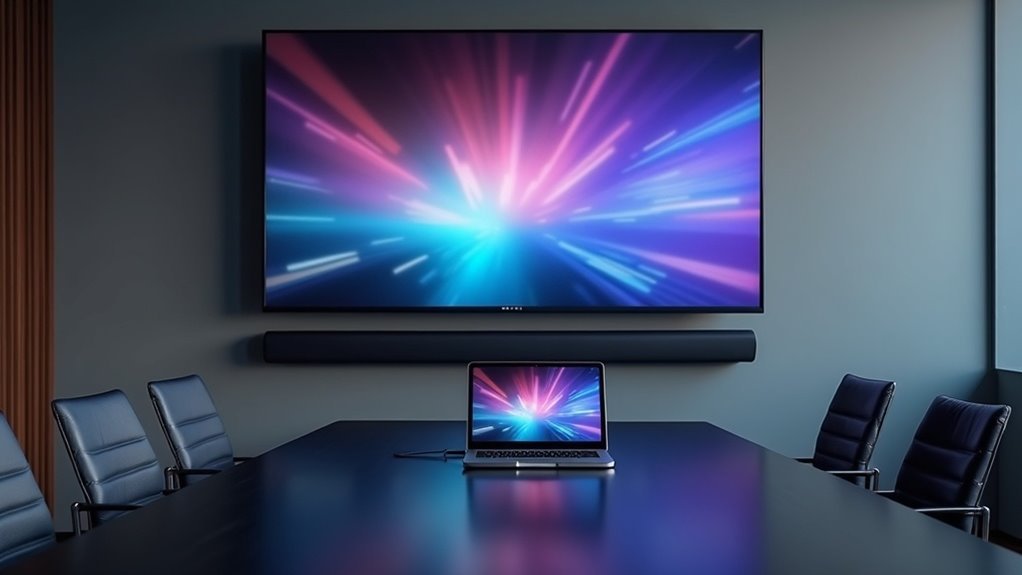
To use a soundbar effectively in a conference room with a display, first connect it via HDMI, ensuring the display supports ARC for optimal audio transmission. For enhanced audio clarity, adjust the soundbar settings and activate beamforming microphones to improve voice pickup. If your display does not have HDMI ARC capability, consider using an optical audio cable as an alternative connection method. It’s essential to test the audio levels from various seats to ensure that everyone can hear clearly. Additionally, explore the soundbar’s features to maximize your conference experience and boost communication effectiveness, making the most out of your soundbar investment.
Key Takeaways
- Connect the soundbar to the conference room display using an HDMI cable with ARC support for streamlined audio and video transmission.
- Ensure the soundbar’s input settings correspond with the display’s HDMI source for optimal audio output.
- For displays without HDMI ARC, use an optical audio cable for high-quality sound connection.
- Utilize the beamforming microphone feature on the soundbar to enhance voice clarity during meetings.
- Regularly test and adjust audio settings to ensure clear communication from all seating positions in the room.
Understanding Soundbars and Their Functionality
When setting up a conference room display, it’s essential to understand soundbars and their functionality to enhance your audio experience.
Soundbars are designed to deliver superior audio quality, making them vital for clear communication during meetings. Many models come with integrated subwoofers, which provide a richer sound than standard TV speakers.
Furthermore, beamforming microphones are a key feature, focusing on the speaker’s voice and minimizing background noise for effective dialogue. Some soundbars even offer video conferencing capabilities, ensuring seamless integration with your display.
With the convenience of connecting via a single HDMI cable, you can streamline your conference room setup, reducing clutter while maintaining a professional appearance.
Investing in a soundbar significantly elevates your audio experience.
Benefits of Using a Soundbar in Conference Rooms
Integrating a soundbar into your conference room setup delivers numerous benefits that enhance both audio quality and user experience.
Soundbars provide immersive sound that guarantees all participants can hear clearly, reducing miscommunication. Their integrated microphones streamline your meeting environment, eliminating the need for multiple devices.
Additionally, soundbars’ compact design allows for flexible placement options, whether mounted on a display or discreetly on a desk. By connecting through a single HDMI cable, soundbars considerably reduce cable clutter, promoting a cleaner space.
Overall, soundbars meet the audio quality needs of participants, making presentations more impactful in conference rooms.
For more information on how soundbars can transform your meeting space, explore our extensive collection of soundbars tailored for conference settings.
Compatibility With Conference Room Displays
Verifying that your soundbar is compatible with your conference room display is crucial for maximizing audio performance during meetings.
Most soundbars connect via HDMI, which provides high-quality audio transmission while minimizing cable clutter. It’s important to check the audio output specifications of your display to ensure it aligns with your soundbar’s input requirements.
Most soundbars use HDMI for optimal audio quality; ensure your display’s output matches your soundbar’s input needs.
Many modern soundbars are designed to support popular video conferencing platforms and include features like echo cancellation, which enhances call quality.
Additionally, some soundbars offer Bluetooth or wireless connectivity, making it easy to pair them with compatible displays.
Connecting the Soundbar to Your Display
Connecting a soundbar to your conference room display can be straightforward with the right approach.
Start by using a single HDMI cable with ARC (Audio Return Channel) support, which ensures streamlined audio and video transmission. Check that the soundbar’s input settings align with the HDMI source from your display for optimal audio performance.
If both devices support Bluetooth, consider a wireless connection for a clutter-free setup. For displays lacking HDMI ARC, an optical audio cable can provide high-quality audio output.
Always refer to the manufacturer’s installation guide for specific instructions and compatibility verification to ensure a successful connection.
Configuring Audio Settings for Optimal Performance
To achieve optimal audio performance with your soundbar in a conference room setting, begin by fine-tuning the soundbar’s settings to enhance clarity and richness. Connect the soundbar using HDMI ARC or an optical cable to ensure high-quality audio. Make use of the beamforming microphone feature to focus on speakers while minimizing background noise. Adjust the equalizer settings to optimize audio specifically for presentations or video calls, ensuring that dialogue is crystal clear. It’s important to test volume levels and sound distribution from various seating positions to eliminate any dead zones. Additionally, remember to regularly update the soundbar’s firmware for performance enhancements and improved compatibility.
| Setting | Adjustment | Purpose |
|---|---|---|
| Microphone Feature | Enable beamforming | Enhance voice clarity |
| Equalizer | Adjust according to content type | Optimize dialogue and richness |
| Volume Levels | Test from all seating positions | Ensure even sound distribution |
| Firmware Updates | Regularly check for updates | Improve overall audio performance |
| Connection Type | Use HDMI ARC or optical cable | Facilitate high-quality audio |
Tips for Ensuring Clear Audio During Meetings
While it’s crucial to have quality soundbars for your audio experience, proper placement and settings play an important role in guaranteeing clear sound during meetings.
Position the soundbar at ear level, ideally below the display, to optimize audio quality. Look for soundbars equipped with beamforming microphones to effectively capture the speaker’s voice while minimizing background noise.
Ensure your soundbar includes features like noise suppression and echo cancellation to enhance communication for remote participants. Regularly test audio levels to achieve balanced sound throughout the meeting room, preventing dead zones.
Integrate your soundbar with a centralized control system to easily manage audio settings during discussions.
Exploring Additional Features of Soundbars
After ensuring clear audio during meetings with proper soundbar placement and settings, it’s time to explore the additional features of soundbars that enhance your conference room experience.
- Built-in Cameras: Many modern soundbars offer high-definition video capabilities, improving the quality of video conferencing.
- Beamforming Microphones: These advanced microphones focus on the speaker’s voice while effectively reducing background noise, resulting in enhanced audio clarity.
- Noise Suppression & Echo Cancellation: Cutting-edge features refine sound quality further, ensuring crystal-clear communication during discussions.
- Seamless Integration: Compatibility with popular platforms like Zoom and Microsoft Teams simplifies the setup process and improves overall usability.
The sleek design of soundbars not only complements any conference room aesthetic but also saves valuable space.







