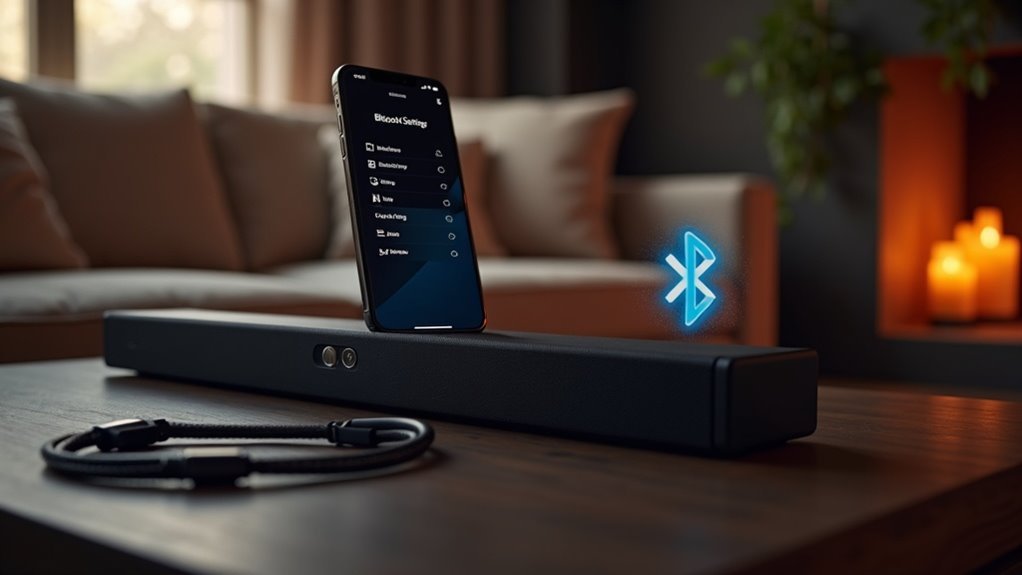
To use your soundbar as a Bluetooth transmitter, first check its compatibility for Bluetooth transmission. Power it on and activate Bluetooth mode, usually by pressing the “Pairing” button. Then, on your device, navigate to Bluetooth settings and select the soundbar. If prompted, enter a pairing code like “0000.” After pairing, you can stream audio wirelessly. If you encounter issues, troubleshoot connection problems or explore soundbar features to enhance your setup for a better audio experience.
Key Takeaways
- Before attempting to use your soundbar as a Bluetooth transmitter, check its specifications to ensure it supports Bluetooth transmission.
- To activate Bluetooth mode on your soundbar, select the appropriate input and press the pairing button until the indicator light starts blinking.
- To pair your Bluetooth headphones or speakers, go to the Bluetooth settings on your device and select your soundbar from the list.
- Ensure that both your soundbar and Bluetooth device have the latest firmware updates to enhance connectivity and functionality.
- If your soundbar does not support Bluetooth transmission, you may want to consider using a dedicated Bluetooth transmitter connected to its audio output.
Checking Bluetooth Compatibility
When checking if your soundbar can act as a Bluetooth transmitter, start by reviewing its specifications or user manual for features like “Bluetooth out” or “transmit mode.” These terms indicate the ability to send audio to other Bluetooth devices.
If your soundbar primarily functions as a Bluetooth receiver, it won’t transmit audio. To verify capabilities, conduct a Bluetooth compatibility test by trying to pair it with a Bluetooth speaker or headphones.
Additionally, ensure the firmware is up to date, as updates may enhance Bluetooth functionality. If necessary, consider using a dedicated Bluetooth transmitter connected to the soundbar’s audio output for reliable transmission.
Activating Bluetooth Mode on Your Soundbar
To activate Bluetooth mode on your soundbar, first ensure that it’s powered on and set to the appropriate input, typically labeled as “Bluetooth” or “Pairing.”
Next, press and hold the “Bluetooth” or “Pairing” button on either the remote or the soundbar itself until the Bluetooth indicator light starts blinking, which signifies that it’s in pairing mode.
For older models, you may need to check if there’s a stereo jack option instead. Be sure to consult your user manual, as the activation method can differ among models.
Additionally, turn off any previously connected devices to prevent interference during the pairing process.
Pairing Your Device With the Soundbar
To pair your device with the soundbar, begin by putting the soundbar into Bluetooth pairing mode.
Then, navigate to the Bluetooth settings on your device to locate and select the soundbar from the list of available devices.
If a pairing code is requested, you can usually enter “0000” or “1234” to finalize the connection.
Enjoy enhanced audio from your soundbar!
Soundbar Bluetooth Mode Activation
Activating Bluetooth mode on your soundbar is a straightforward process that typically starts by pressing the “Bluetooth” or “Pairing” button on either the remote control or the soundbar itself until a pairing indicator light starts flashing.
- Ensure your soundbar is powered on.
- Stay within 30 feet of your Bluetooth device for optimal connection.
- Access your device’s settings menu to enable Bluetooth.
- Consult your user manual if your model requires holding the button for several seconds.
Once paired, you’ll hear a confirmation sound or see a solid Bluetooth light, indicating a successful connection.
For more detailed instructions specific to your soundbar model, refer to the user manual or the manufacturer’s website.
Device Pairing Process Steps
Once your soundbar is in Bluetooth pairing mode, you can easily connect your device by navigating to the Bluetooth settings on your smartphone or tablet.
Search for available devices, and you should see your soundbar listed. Select it to initiate the pairing process.
If prompted, enter the pairing code, which is usually “0000” or “1234.” This step ensures a secure connection.
Once paired, you’ll receive a confirmation on both your device and the soundbar, indicating that audio output is now routed through the soundbar.
Enjoy your enhanced sound experience as your device streams audio seamlessly through your soundbar.
Transmitting Audio From Your Device
Using a soundbar as a Bluetooth transmitter allows you to wirelessly stream audio from various devices, enhancing your overall listening experience.
To get started, follow these steps:
- Confirm that your soundbar has Bluetooth transmit capabilities.
- Connect your audio source (TV, smartphone) through HDMI ARC, optical, or auxiliary input.
- Activate Bluetooth pairing mode on the soundbar, either via a dedicated button or through the settings menu.
- On your Bluetooth device (such as headphones), enable Bluetooth and select the soundbar from the list of available devices.
Once paired, adjust the volume levels on both devices for optimal sound quality without distortion.
Enjoy your wireless audio experience with your soundbar!
Troubleshooting Connection Issues
When you encounter connection issues with your soundbar, it’s essential to identify common problems that could be affecting the pairing process.
First, check for device compatibility to ensure your soundbar can connect with your other devices.
Additionally, make sure there’s no signal interference from other electronics nearby, as this can disrupt the Bluetooth connection.
Common Connection Problems
Although connecting a soundbar as a Bluetooth transmitter can enhance your audio experience, common issues may arise during the process. Here are some troubleshooting tips to help you:
- Ensure your soundbar supports Bluetooth transmission.
- Activate the Bluetooth pairing mode in the soundbar’s settings.
- Keep the Bluetooth device within 30 feet and avoid connecting multiple devices simultaneously.
- Restart both the soundbar and the Bluetooth device to clear any potential errors.
Additionally, it’s important to check for firmware updates on both devices, as outdated software can hinder successful pairing.
Device Compatibility Issues
Device compatibility issues can significantly impact your ability to use a soundbar as a Bluetooth transmitter. To begin, ensure that your soundbar supports Bluetooth transmission. Refer to the manual for detailed pairing instructions and confirm that your TV’s audio output is set to PCM stereo for optimal performance. If you encounter connectivity issues, try resetting the Bluetooth connection on both devices. In cases where your soundbar only accepts one audio source, consider utilizing an optical audio splitter to connect multiple devices.
| Issue | Solution | Notes |
|---|---|---|
| Non-Bluetooth soundbar | Check model specifications | Verify capabilities |
| Incorrect audio settings | Set TV to PCM stereo | Essential for pairing |
| Single input source | Use optical audio splitter | Connect multiple devices |
Signal Interference Solutions
To ensure a stable Bluetooth connection with your soundbar, it’s important to tackle potential signal interference. Here are some effective solutions:
- Position your soundbar away from walls and obstructions to enhance its range.
- Turn off or relocate other electronic devices that operate on the 2.4GHz frequency, such as Wi-Fi routers, to minimize interference.
- Regularly update your soundbar’s firmware to improve connectivity and fix any issues.
- If you experience connection drops, reset the Bluetooth settings on both your soundbar and the device you’re connecting.
Additionally, experimenting with different locations can help you identify and mitigate weak signal areas, leading to an optimal listening experience with your soundbar.
Enhancing Your Audio Experience
Using a soundbar as a Bluetooth transmitter can significantly elevate your audio experience by eliminating the clutter of wires while delivering exceptional sound quality.
With a Bluetooth-enabled soundbar, you can effortlessly stream audio from your TV directly to Bluetooth headphones or speakers. Ensure that your soundbar is compatible with Bluetooth transmission and connect it to your audio device for a seamless listening experience.
Stream audio from your TV to Bluetooth headphones or speakers with ease using a Bluetooth-enabled soundbar for a seamless experience.
Many modern soundbars come equipped with optical audio inputs, providing enhanced sound quality even when using Bluetooth. To achieve optimal audio performance, enable PCM stereo output in your TV settings.
This setup not only allows for easy switching between different audio sources but also adds a layer of versatility and convenience to your overall home audio system.







