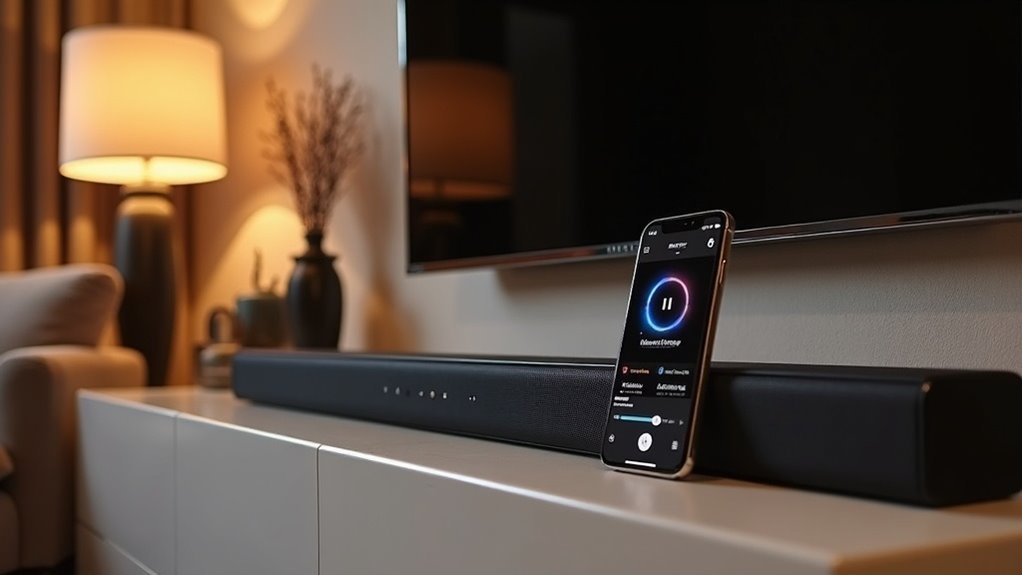
To use your soundbar as a Bluetooth receiver, first verify it supports the A2DP profile. Begin by powering on the soundbar and activating pairing mode, which is often indicated by a blinking LED light. Next, on your Bluetooth device, search for available connections and select your soundbar. To ensure the best connection, keep the devices within 30 feet of each other. If you encounter any issues, check the compatibility of your devices and consider resetting the Bluetooth settings as needed. For additional tips to enhance your wireless audio experience, explore our other resources on soundbars.
Key Takeaways
- Check the soundbar specifications to confirm it supports Bluetooth and A2DP profile for audio reception.
- Power on the soundbar and activate Bluetooth pairing mode, indicated by a blinking LED light.
- Ensure the Bluetooth device is enabled and searching for new devices to pair with the soundbar.
- Select the soundbar from the list of available devices on your Bluetooth device to establish the connection.
- Maintain a distance of no more than 30 feet from the soundbar to optimize Bluetooth signal strength.
Understanding Bluetooth Functionality in Soundbars
Understanding Bluetooth functionality in soundbars is essential for enhancing your audio experience. A soundbar serves as a Bluetooth receiver, enabling you to enjoy wireless audio from your smartphone, tablet, or computer.
Most soundbars support Bluetooth profiles like A2DP for seamless audio streaming. Typically, you can connect within a range of up to 30 feet, although obstacles may interfere with the connection.
To activate Bluetooth mode, simply switch your soundbar on, often indicated by an LED light. Some models even support advanced codecs like aptX or AAC, ensuring higher-quality Bluetooth audio.
Embrace this technology for a more versatile listening experience with your soundbar!
Confirming Bluetooth Compatibility
Before diving into using your soundbar as a Bluetooth receiver, it’s vital to confirm its compatibility with Bluetooth technology.
Check the soundbar’s specifications or user manual for Bluetooth functionality. While many modern soundbars support Bluetooth, ensure they can specifically function as Bluetooth receivers.
Look for Bluetooth profiles like A2DP, which is essential for receiving audio signals. If your soundbar features a pairing mode, you can activate it with a specific button to connect Bluetooth devices such as smartphones or tablets.
Finally, verify that your soundbar’s firmware is updated to enhance Bluetooth performance and compatibility with your devices.
Preparing Your Soundbar for Pairing
Once you’ve confirmed your soundbar’s Bluetooth compatibility, it’s time to prepare it for pairing.
First, ensure your soundbar is powered on and within range of the Bluetooth device you want to connect. Activate Bluetooth pairing mode on your soundbar, which usually involves pressing a specific button—look for a blinking LED light.
Consult your soundbar’s user manual for precise instructions, as this can vary by model. Meanwhile, make certain your Bluetooth device has Bluetooth enabled and is searching for new devices.
Once your soundbar appears on the list, select it to finalize the connection. Enjoy your enhanced audio experience with your soundbar!
Pairing Your Device With the Soundbar
Pairing your device with the soundbar is a simple process that significantly enhances your audio experience.
First, ensure the soundbar is powered on and set to Bluetooth mode, which is typically indicated by a specific LED light or a “BT” display.
Make sure your soundbar is turned on and switched to Bluetooth mode, indicated by its LED light or “BT” display.
Next, activate Bluetooth on your smartphone, tablet, or computer, and search for available devices until you find the soundbar’s name.
Select it to initiate the pairing process, confirming any prompts or entering the PIN if requested (commonly 0000 or 1234).
Once paired, you’ll hear an audio confirmation, and the soundbar will now function as your device’s audio output.
Keep in mind that it can only connect to one device at a time.
Troubleshooting Common Connection Issues
If you’re having trouble connecting your device to the soundbar, it’s important to first check for compatibility.
Ensure that your Bluetooth device matches the soundbar’s version and that you’re within range, free from any obstructions.
If you continue to experience issues, resetting the soundbar’s Bluetooth settings could help resolve the problem.
Connection Compatibility Checks
How can you ensure a seamless connection between your soundbar and Bluetooth devices? Follow these connection compatibility checks to enhance your audio output experience:
- Verify your soundbar’s Bluetooth capability in the user manual; not all soundbars support this feature.
- Ascertain that your Bluetooth device is compatible with your soundbar’s Bluetooth version, as older devices might struggle to connect.
- Check if your soundbar requires a specific pairing mode to be activated for receiving Bluetooth audio.
- Confirm that your soundbar’s firmware is updated to avoid any known connectivity issues.
Testing with multiple devices can help you troubleshoot and resolve any compatibility issues you might encounter.
Bluetooth Pairing Problems
Even after verifying that your soundbar is compatible with your Bluetooth devices, you might still encounter challenges during the pairing process.
First, ensure that your soundbar is in Bluetooth pairing mode; consult the manual for detailed guidance. Confirm that your device’s Bluetooth is enabled and within a range of 30 feet.
If you’ve previously connected devices, make sure to disconnect or forget them, as they can interfere with the pairing process.
If issues persist, consider resetting your soundbar to factory settings or updating the firmware on both the soundbar and the source device.
These steps can help resolve connectivity issues and enhance the connection with your Bluetooth devices.
Optimizing Audio Quality Settings
To ensure you achieve the best audio experience from your soundbar when using it as a Bluetooth receiver, start by confirming its compatibility with high-quality audio codecs such as aptX or AAC.
Follow these steps to optimize your audio settings:
- Set your soundbar’s output to PCM stereo format for enhanced compatibility.
- Utilize a dedicated optical audio connection from your TV to reduce latency.
- Regularly check for firmware updates to improve Bluetooth performance.
- Maintain a distance of no more than 30 feet between your soundbar and the transmitting device for optimal signal strength and audio clarity in your home audio setup.
Enjoying Wireless Audio Streaming
While enjoying your favorite audio content, using a soundbar as a Bluetooth receiver can elevate your listening experience.
Ensure your soundbar supports Bluetooth input, which allows for seamless wireless audio streaming from devices like smartphones or tablets. Most modern soundbars come with this feature, enabling effortless connections.
Once paired, your soundbar acts as an external speaker, letting you enjoy music and podcasts without the hassle of messy cables.
Additionally, many soundbars incorporate aptX Low Latency technology, ensuring high-quality sound without lag, making them ideal for both music and movies.
Simply activate Bluetooth on both devices, select your soundbar, and immerse yourself in an exceptional audio experience!







