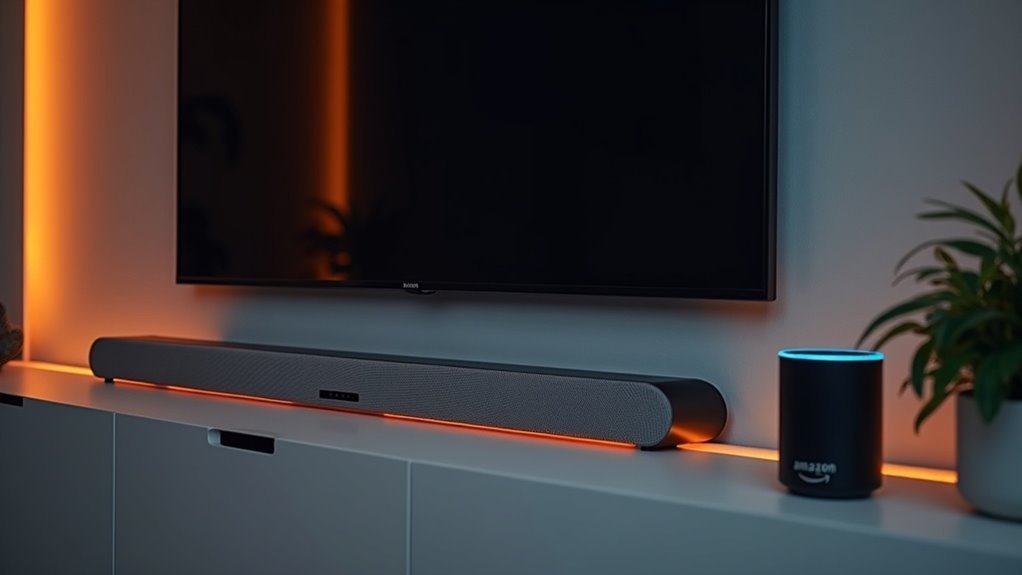
Yes, a soundbar can connect to Alexa, but you’ll need to verify compatibility first. Many Samsung soundbars, like the Q9 and S6, come with built-in Alexa support. You can also pair other models with Echo devices via Bluetooth for easy voice control. Setting it up involves using the SmartThings app, where you can enable Alexa integration. Once connected, you’ll enjoy hands-free audio management and customization. Keep exploring to discover more features and tips related to soundbars!
Key Takeaways
- Many soundbars, particularly from brands like Samsung and Yamaha, come with built-in Alexa support, allowing for direct voice control of your audio experience.
- Additionally, soundbars can connect to Echo devices via Bluetooth, enabling you to use Alexa for controlling audio playback effortlessly.
- To set up your soundbar with Alexa, simply use the SmartThings app to add the device and enable the necessary Alexa settings.
- It’s important to ensure that both the soundbar and the Alexa device are connected to the same Wi-Fi network for a seamless connection and control experience.
- Lastly, always check for compatibility and firmware updates to ensure that your soundbar fully supports Alexa functionality, which will enhance your overall performance.
Understanding Soundbar Compatibility With Alexa
When considering whether your soundbar can connect to Alexa, it’s essential to know that not all soundbars are created equal.
Many Samsung soundbars, like the Q9, Q8, S6, S8, and Music Frame series, support Alexa, allowing for seamless voice control. To utilize this feature, your soundbar must either have built-in Alexa support or pair with an Echo device via Bluetooth.
Compatibility can vary by model and region, so verify that your device meets Amazon’s policies. Once set up, Alexa can control soundbar functions, including volume adjustments and playback, enhancing your overall audio experience safely and efficiently.
Setting up Your Soundbar With Smartthings
To set up your soundbar with SmartThings, begin by downloading the SmartThings app on your device and adding your soundbar as a new device.
Follow the prompts to establish the connection, making sure you’re logged into your Samsung account for optimal functionality.
After successfully connecting your soundbar, you can easily enable Alexa integration by navigating to the Alexa settings within the app.
Enjoy enhancing your audio experience with seamless control through SmartThings!
Connecting Soundbar to SmartThings
Connecting your soundbar to SmartThings is a straightforward process that enhances your home entertainment experience.
Follow these steps to get started:
- Install and open the SmartThings app.
- Tap the plus sign to add a device and select your soundbar type.
- Log into your Samsung account if prompted.
- Access additional features by selecting the device’s card for sound customization and control options.
Enjoy an elevated audio experience with your soundbar seamlessly integrated into your SmartThings ecosystem!
Configuring Alexa Integration
Integrating Alexa with your soundbar can significantly enhance your audio experience.
To get started, ensure that your soundbar is compatible and connected to the SmartThings app. Open the SmartThings app, tap the Add (+) icon, and select your soundbar from the Samsung device list.
If prompted, log into your Samsung account and follow the on-screen instructions. Once added, locate your soundbar’s card, tap More options (three vertical dots), and navigate to Alexa Settings.
Finally, sign into your Amazon account, grant the necessary permissions, and complete the setup to activate Alexa functionality with your soundbar.
Enjoy effortless control of your soundbar!
Enabling Alexa Functionality on Your Soundbar
To enable Alexa functionality on your soundbar, begin by connecting it to the SmartThings app.
After successfully adding your soundbar, sign into your Amazon account and configure the required voice command permissions.
Once these steps are complete, you’ll be ready to effortlessly control your soundbar using just your voice!
Connecting Soundbar to SmartThings
If you want to enable Alexa functionality on your soundbar, connecting it to SmartThings is a straightforward process. Follow these steps to get started:
- Install and open the SmartThings app on your device.
- Tap the Add (plus sign) icon, then select Soundbar or Speaker.
- Confirm you’re logged into your Samsung account and follow the on-screen instructions.
Access the soundbar’s card in the app, navigate to Alexa Settings, and complete the setup.
This involves signing into your Amazon account, granting necessary permissions, and selecting your preferred language to activate Alexa functionality on your Samsung soundbar.
Enjoy seamless integration with your audio experience!
Signing Into Amazon Alexa
How can you seamlessly enable Alexa functionality on your soundbar?
Start by accessing the SmartThings app and selecting your soundbar device.
Tap on “More options” and navigate to “Alexa Settings” to initiate signing into Amazon Alexa.
When prompted, enter your Amazon account credentials to complete the integration process.
It’s essential to allow necessary voice service and connection permissions during setup, ensuring full Alexa functionality on your soundbar.
Once you’ve finished, you can effortlessly use voice commands through Alexa to control your soundbar and enhance your audio experience, all while maintaining a secure connection.
Enjoy the convenience of voice-activated control for a truly immersive soundbar experience!
Voice Command Permissions Setup
Once you’ve signed into your Amazon account, setting up voice command permissions on your soundbar is straightforward.
Here’s how to enable Alexa functionality for your soundbar:
- Confirm your soundbar model is compatible (Q9, Q8, S6, S8, or Music Frame series).
- Open the SmartThings app, select your soundbar, and find the Alexa Settings option.
- Grant permissions for voice services and connections.
- Choose your preferred language for seamless interaction.
After finalizing these steps, tap Done, and you’re ready to enjoy hands-free control of your soundbar with voice commands.
Experience the convenience of managing your audio system while ensuring your security and privacy!
Voice Commands for Controlling Your Soundbar
Ever wondered how to effortlessly control your soundbar with just your voice? You can easily do this by using Alexa.
Just ask Alexa to help with commands like, “turn on the soundbar,” “set the volume to 50,” or “play music on the soundbar.”
Simply ask Alexa to control your soundbar with commands like “turn it on,” “adjust the volume,” or “play music.”
To enable this feature, confirm your soundbar is compatible and connected through the SmartThings app.
For convenience, create custom speaker groups in the Alexa app, naming your soundbar something easy, like “Living Room.”
Always verify that your soundbar falls within the supported model range to guarantee peak performance and responsiveness when you ask Alexa.
Troubleshooting Common Connection Issues
While connecting your soundbar to Alexa can enhance your home entertainment experience, you might encounter some common issues along the way.
Here are a few troubleshooting tips to keep in mind:
- Ensure your soundbar model supports Alexa (Samsung Q9, Q8, S6, S8, or Music Frame).
- Confirm that both your soundbar and Alexa device are connected to the same Wi-Fi network.
- Verify that the Alexa skill is enabled in the SmartThings app and properly linked to your Amazon account.
- Check for firmware updates for your soundbar, as outdated software can hinder functionality.
Advanced Features for Enhanced Audio Experience
If you’re looking to elevate your soundbar experience, connecting it to Alexa opens up a range of advanced features that make listening more enjoyable. You can control audio playback hands-free, create custom speaker groups, and enjoy multi-room audio. Here’s a quick overview:
| Feature | Description | Benefits |
|---|---|---|
| Hands-Free Control | Use voice commands to control your soundbar playback | Convenience and accessibility |
| Custom Speaker Groups | Play music across multiple soundbars | Tailored audio experiences |
| Personalized Playlists | Create playlists with your favorite streaming services | Seamless audio enjoyment |
| Multi-Room Audio | Different music in various rooms using your soundbars | Enhanced listening flexibility |
These advanced features truly enhance your soundbar audio journey!
Integrating Multiple Devices With Alexa
Integrating multiple soundbars with Alexa can greatly enhance your audio experience, transforming how you enjoy music and sound throughout your home.
By using the Alexa app, you can create custom speaker groups for seamless playback. Here’s how to make the most of it:
- Control audio playback with simple voice commands.
- Connect popular soundbars from brands like Samsung and Yamaha for an immersive listening experience.
- Utilize Alexa’s multi-room audio feature to enjoy sound in different areas of your home.
- Create custom playlists for various moods or activities to suit your preferences.
With these features, you can enjoy a personalized audio experience with your soundbars while ensuring your home remains safe and secure.
Exploring Additional Support and Resources
To enhance your experience with soundbars and Alexa, it’s important to know where to find reliable support and resources.
If you own a Samsung soundbar, you can easily set it up with Alexa via the SmartThings app, which requires a Samsung account for full integration.
For immediate assistance, Samsung offers 24/7 live chat support to help you troubleshoot any connection issues.
Additionally, you can tap into community insights through Samsung Members, where other users share tips on soundbar features and Alexa integration.
If you prefer speaking to someone, dedicated phone support is also available for expert guidance.







