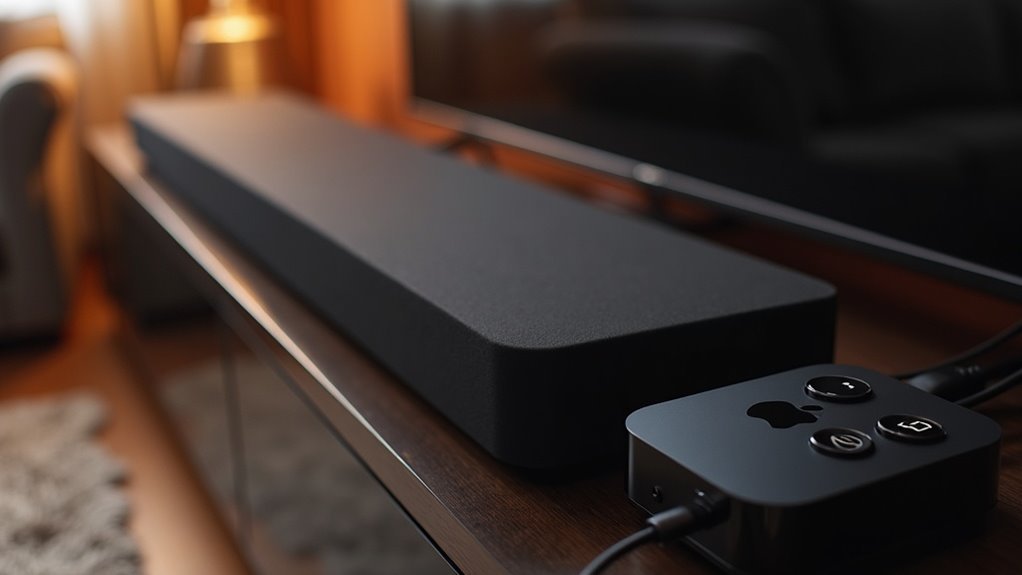
To connect a soundbar to your Apple TV 4K, begin by using an HDMI cable to link the Apple TV to the soundbar’s HDMI IN port. Next, connect the soundbar’s HDMI OUT port to your TV’s HDMI ARC port. This setup ensures optimal audio quality and enables you to control the soundbar’s volume using your TV remote. For additional tips on troubleshooting or exploring alternative connection options, continue browsing our resources on soundbars!
Key Takeaways
- Connect your Apple TV 4K to the soundbar’s HDMI IN port using an HDMI cable to facilitate audio output.
- Link the soundbar’s HDMI OUT port to your TV’s HDMI ARC port for optimal audio transmission.
- Ensure that your soundbar supports HDMI ARC or eARC to take advantage of the Audio Return Channel feature.
- If your soundbar does not have ARC support, connect the Apple TV directly to the TV and use an optical audio cable for sound.
- Enable HDMI-CEC on both your soundbar and TV to allow for unified volume control with a single remote.
Connection Setup
To connect your Apple TV 4K to your soundbar, begin by using an HDMI cable to plug it into the soundbar’s HDMI IN port.
Next, take another HDMI cable and connect the soundbar’s HDMI OUT port to the HDMI ARC port on your television for optimal audio output.
Connect the soundbar’s HDMI OUT port to your TV’s HDMI ARC port for the best audio experience.
Ensure that your soundbar supports HDMI ARC or eARC to facilitate seamless audio and video transmission.
If your soundbar doesn’t support this feature, connect the Apple TV directly to the TV and then use an optical audio cable from the TV to the soundbar for sound output.
Lastly, make sure all devices are powered on and correctly configured to enjoy an enhanced audio experience.
Expected Functionality
Once you’ve set up your soundbar, you can expect it to greatly enhance your audio experience.
Your soundbar will output crisp audio while video signals go directly to your television. Additionally, it can function as an AirPlay speaker, allowing you to stream music even when the TV is off.
When connected to the HDMI ARC port, your soundbar will recognize audio from various TV inputs, ensuring a smooth sound experience.
If HDMI-CEC is enabled, you can easily control the soundbar’s volume using your TV remote, simplifying your overall setup.
Enjoy the seamless audio experience that your soundbar delivers!
Audio Return Channel (ARC)
When you connect your soundbar to your TV using the Audio Return Channel (ARC), it simplifies your setup by allowing audio signals to travel back through the same HDMI cable. This enhances connectivity and reduces cable clutter, making it easier to enjoy high-quality sound from your favorite shows and movies.
To make the most of ARC with your soundbar, keep these points in mind:
- Verify that the HDMI port on your TV supports ARC to ensure compatibility with your soundbar.
- Your soundbar can receive audio from multiple devices connected to the TV, providing a more versatile audio experience.
- Enjoy features like automatic power control and volume adjustment using a single remote, streamlining your entertainment setup.
- Keep both your soundbar and TV updated with the latest firmware updates to ensure peak performance and access to new features.
Troubleshooting Connection Issues
Even with the benefits of ARC enhancing your audio experience, you might still encounter connection issues between your soundbar and Apple TV 4K.
First, ensure your soundbar is powered on and within range. Check that it’s set to Pairing Mode for Bluetooth connections.
Verify all HDMI cables are securely connected and compatible with ARC or eARC for optimal audio performance.
If issues persist, consider trying different HDMI cables or restarting both devices to refresh the connection.
Lastly, consult your soundbar’s user manual for specific instructions on enabling Bluetooth or HDMI-CEC functionality, as these settings can vary by model.
Alternative Connection Options
Connecting your soundbar to Apple TV 4K doesn’t have to be limited to HDMI. Here are some alternative connection options to consider:
- Use an optical audio cable to link the soundbar directly to the TV, allowing audio output from multiple sources.
- Connect Apple TV to the TV’s HDMI input and the soundbar to the HDMI ARC port for seamless audio return.
- Utilize Bluetooth for a wireless connection, keeping in mind it may compromise audio quality.
- Combine connections, like using HDMI for the Apple TV and optical audio for other devices, based on your equipment compatibility.
User Considerations and Community Engagement
When connecting your soundbar to Apple TV 4K, checking device compatibility is essential for a seamless audio experience.
Engaging with soundbar community forums can offer valuable insights and support from others who’ve faced similar challenges.
You’ll discover tips on settings adjustments and recommendations for optimal performance, helping you enhance your audio setup for a more immersive entertainment experience.
Device Compatibility Insights
To ensure an optimal audio experience with your soundbar and Apple TV 4K, it’s essential to carefully consider device compatibility.
Here are some important points to keep in mind:
- Verify that both your soundbar and TV support HDMI ARC or eARC for the best audio quality.
- Make sure the soundbar is set to the correct input and connected to the TV’s HDMI ARC port.
- Be aware of specific compatibility issues with certain soundbars, such as the Samsung Q990B.
- Remember to check for firmware updates on both the soundbar and Apple TV to prevent connectivity issues.
Participating in user forums can offer valuable insights and practical solutions.
Community Support Resources
Engaging with community support resources can greatly enhance your experience with soundbars connected to your Apple TV 4K. By participating in forums dedicated to soundbars, you can gather valuable insights and troubleshooting tips on setup and compatibility.
Users often share their unique configurations, helping you optimize your audio experience. Active involvement in these discussions may reveal firmware updates or settings adjustments that improve performance.
Plus, collaborating with others empowers you to troubleshoot effectively and make informed purchasing decisions based on peer feedback. Immerse yourself in the community to elevate your soundbar connection and enjoy a richer audio experience with your Apple TV.







