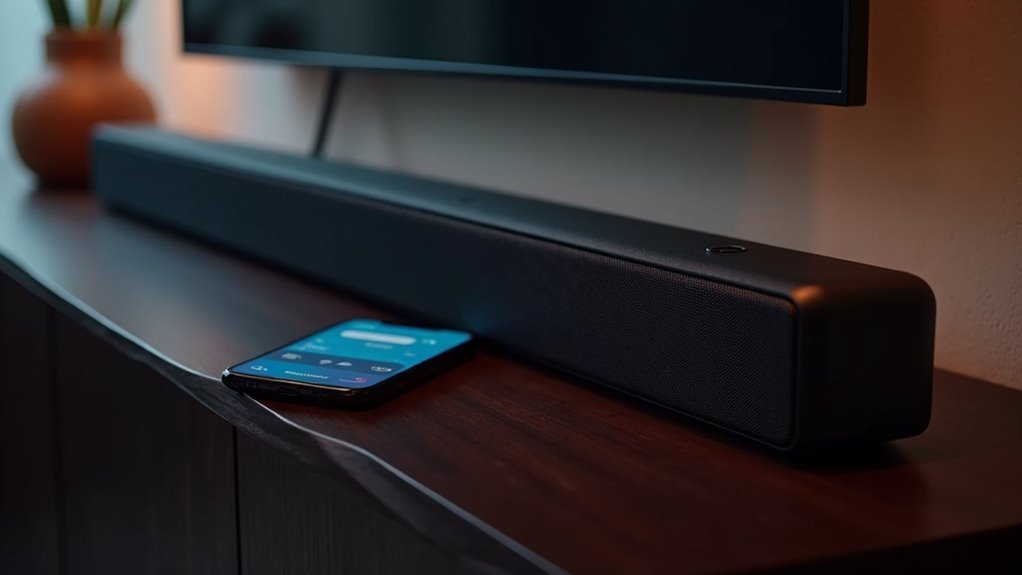
To rename Bluetooth devices on your soundbar, first ensure it’s powered on and in pairing mode. Access the Bluetooth settings using the soundbar’s user manual or a dedicated companion app. Identify your soundbar by its default name, which is typically its model number. If the option is available, you can rename it directly. Be aware that some models may have limitations regarding renaming, so it’s advisable to check for any firmware updates. Additionally, you can find useful tips and troubleshooting steps to enhance your audio experience with your soundbar.
Key Takeaways
- Ensure your soundbar is powered on and in pairing mode to begin the renaming process.
- Access the Bluetooth settings through your soundbar’s remote or on-screen menu for model-specific options.
- Locate the soundbar in the connected device’s Bluetooth list, usually identified by its default name.
- Check if there’s a direct renaming option in the connected device’s menu or app.
- Refer to the soundbar’s user manual for specific instructions, as renaming capabilities may vary by model.
For more detailed guidance and troubleshooting tips, explore our comprehensive soundbar resource section.
Understanding Bluetooth Devices
Soundbars are essential tools for enhancing your audio experience, allowing you to connect various devices effortlessly. They utilize wireless technology, typically functioning within a 30-foot radius, enabling secure sound transmission.
Operating over a 2.45 GHz frequency band, soundbars often employ spread-spectrum frequency hopping, which reduces interference from other electronics. Most soundbars automatically detect and connect with compatible devices, simplifying the setup process.
However, the default names often resemble serial numbers, leading to confusion when multiple similar soundbars are present. Being aware of your soundbar’s limitations regarding renaming options can help you change the name for better identification and ease of use.
Preparing Your Soundbar for Renaming
To successfully rename your soundbar, you’ll need to prepare it properly before diving into the process.
First, make certain your soundbar is powered on and connected to your device via Bluetooth, as renaming options won’t be available if it’s off or disconnected.
Check the user manual or the manufacturer’s website for specific instructions, since not all soundbars support renaming.
Consult your user manual or the manufacturer’s website, as renaming capabilities vary among soundbar models.
Ascertain your device’s software is updated for compatibility, and download any required apps from the manufacturer.
Finally, confirm that your soundbar is discoverable and in pairing mode, allowing you to access the necessary renaming options easily.
Accessing Bluetooth Settings on Your Soundbar
When you’re ready to access the Bluetooth settings on your soundbar, start by checking your user manual for specific instructions tailored to your model.
Most soundbars feature a dedicated Bluetooth button on the remote or the device itself, which allows you to enter Bluetooth pairing mode. Once in pairing mode, you can typically access the Bluetooth settings through an on-screen menu displayed on your television if supported.
Additionally, some soundbars may require you to download a companion app from the manufacturer to manage Bluetooth settings and rename the device.
Ensure that your soundbar is updated to the latest firmware for enhanced functionalities.
Selecting the Device to Rename
After entering the Bluetooth settings on your soundbar, you’ll need to select the device you want to rename.
Make sure your soundbar is powered on and in pairing mode. On your connected device, like a smartphone or computer, access the Bluetooth settings to view the list of available Bluetooth devices.
Locate your soundbar, which might’ve a default name resembling its model number. Once you find it, select the soundbar.
Check if there’s an option to rename it directly from this menu. If not, refer to the soundbar’s user manual or manufacturer app for specific renaming instructions.
Entering and Confirming the New Device Name
Renaming your soundbar is a straightforward process that enhances your Bluetooth experience.
First, access the settings through the companion app or the onboard menu. Once you’ve selected your soundbar, navigate to the Bluetooth settings menu and look for an option to edit the Bluetooth name.
Enter your desired name, ensuring your soundbar is powered on and connected. After typing the new name, confirm the change by selecting ‘Save’ or ‘Apply’, depending on your soundbar’s brand.
Keep in mind that not all soundbars support this feature, so check your model’s capabilities before proceeding.
Troubleshooting Common Renaming Issues
You might encounter some common issues when attempting to rename Bluetooth devices on your soundbar.
Many soundbars come with manufacturer limitations that hinder the renaming process, and occasionally, the names revert to their original defaults after restarting the device.
If you find yourself dealing with these challenges, considering connected devices or third-party apps could provide some alternative solutions to enhance your soundbar experience.
Device Manufacturer Limitations
While many users seek to personalize their soundbar experience, the reality is that device manufacturer limitations can hinder the ability to rename Bluetooth connections.
Many third-party soundbars don’t allow users to rename their Bluetooth accessories, as the naming capability is often restricted by the manufacturer. The options depend on the specific model and firmware; some brands provide apps for this feature, while others don’t.
Even premium soundbar manufacturers impose similar restrictions, leading to frustration when default names resemble serial numbers.
Understanding these limitations helps manage expectations and find alternatives for organizing your soundbars effectively.
Name Reversion Problems
When trying to rename a Bluetooth soundbar, users often encounter frustrating name reversion issues that can undermine their efforts for personalization. This problem is common across different soundbar models, as names often revert to factory settings.
Here are some potential causes:
- Device manufacturer limitations
- Temporary renaming settings
- Bluetooth connection resets
- Software bugs or glitches
- Inconsistencies in device compatibility
These issues make it difficult to manage multiple identical soundbars.
Community feedback indicates a strong desire for manufacturers to create a more permanent solution to enhance user experience, ensuring your soundbar name stays as you intended.
Tips for Managing Multiple Bluetooth Devices
Managing multiple Bluetooth soundbars can be a breeze if you take a few simple steps to stay organized.
Start by labeling your soundbars based on their location or purpose, such as naming your soundbar “Living Room Soundbar.” Use device management apps on your smartphone to track connected soundbars, making it easier when switching between audio sources.
Regularly check for firmware updates, as they can enhance soundbar functionality and performance. If available, consider manufacturer-specific apps to rename your soundbars or customize their audio settings.
Keep a list of your soundbars and their functions handy to avoid confusion during connections, ensuring a smooth and efficient experience with your Bluetooth soundbars.







