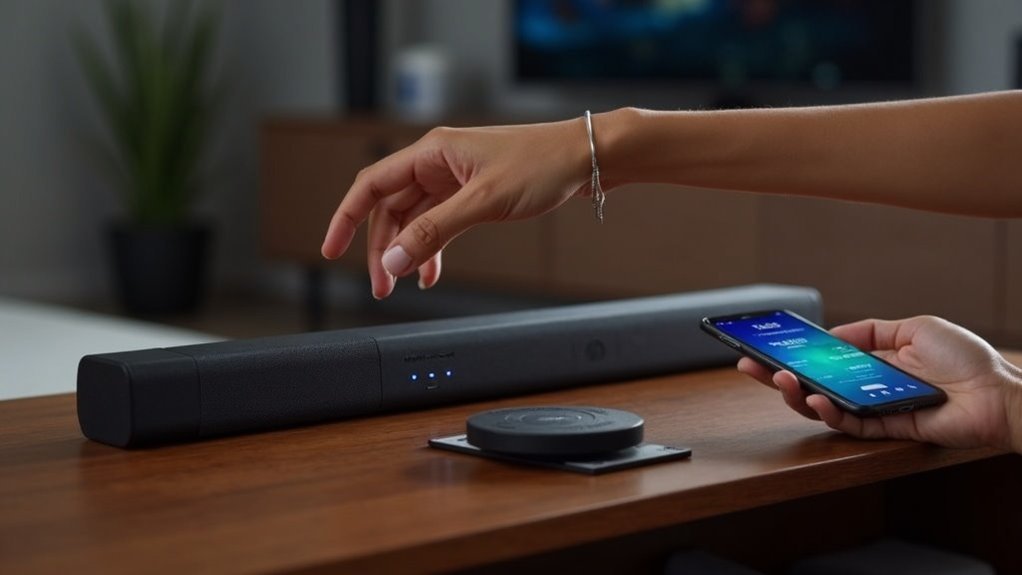
To switch between Bluetooth devices on your soundbar, start by disconnecting the current device using the Bluetooth button or by changing the input mode. Next, ensure that your new audio device is powered on and within a range of 3-10 feet from the soundbar. Activate Bluetooth on the new device, then press the Bluetooth PAIR or Source button on the soundbar until it displays “BT READY.” Finally, select the soundbar from the Bluetooth settings of the new device to establish the connection. If you encounter any issues, continue to troubleshoot common connection problems!
Key Takeaways
- Ensure the soundbar is in Bluetooth mode and displays “BT READY” before attempting to connect a new device.
- Unpair the current device using the Bluetooth button or by switching input modes on the soundbar.
- Activate Bluetooth on the new device and keep it within 3-10 feet of the soundbar for stable pairing.
- Clear previous connections on the new device to avoid automatic reconnection to the soundbar.
- Restart both the soundbar and the new device if connection issues arise, and ensure both have the latest firmware updates for optimal performance.
Preparing Your Soundbar for Bluetooth Switching
Before you start switching Bluetooth devices on your soundbar, ensure that your soundbar is powered on and set to Bluetooth mode. You can do this by pressing the Source button or using the remote control to select Bluetooth.
Next, activate the Bluetooth function on your new audio device, keeping it within 3-10 feet of the soundbar for optimal connection stability. If you encounter any issues, try clearing any existing connections by forgetting the soundbar in your device’s Bluetooth settings.
Begin the pairing process on your new device, and confirm the connection request on both your soundbar and the device to enjoy seamless audio switching.
Disconnecting the Current Device
To disconnect the current Bluetooth device from your soundbar, you can easily unpair it by pressing the Bluetooth button on the remote or directly on the soundbar.
If there’s no dedicated button available, switching to a different input mode will also work.
Always check your audio source device to confirm that the connection has been terminated before proceeding to connect a new device.
Unpairing Previous Connections
Unpairing a previous Bluetooth connection from your soundbar is a straightforward process that ensures you can connect to new devices without hassle.
First, make sure your soundbar is powered on and in Bluetooth mode. On your connected device, navigate to the Bluetooth settings and select the option to forget or remove the soundbar.
If necessary, manually disconnect the current device by pressing the Bluetooth PAIR button on the soundbar. Confirm the display shows BT READY, indicating it’s ready for new connections.
If you encounter issues, consider resetting the soundbar to clear all previous pairings for a fresh start. This will enhance your soundbar experience by allowing you to seamlessly connect to your preferred devices.
Switching Active Devices
Switching active Bluetooth devices on your soundbar is a quick and simple process.
Start by pressing the Bluetooth PAIR or Source button to disconnect the current device and enter pairing mode. Ensure your soundbar displays “BT PAIRING” or “BT READY” before connecting to a new device.
If it reconnects automatically, you’ll need to remove the last paired device from your Bluetooth settings. For optimal performance, keep your new device 3-10 feet away for stable pairing.
Finally, search for available Bluetooth devices on your new device and select the soundbar from the device list to establish the connection.
Enjoy your audio experience!
Enabling Bluetooth on the New Device
Before you can connect your new device to the soundbar, you’ll need to enable Bluetooth on it.
Navigate to your device’s settings menu and find the Bluetooth option—make sure it’s turned on. If necessary, enter pairing mode by holding the Bluetooth button until a light indicator shows it’s ready to connect.
Ensure your device is discoverable, allowing it to be detected by the soundbar. Keep the new device within 3-10 feet for a stable connection.
If prompted, confirm any pairing requests on both your new device and the soundbar to establish the connection smoothly.
Enjoy enhanced audio experiences with your soundbar once the connection is established!
Putting the Soundbar in Pairing Mode
To connect your Bluetooth device to the soundbar, you need to put the soundbar in pairing mode.
You can do this using either the remote control or the manual button method, depending on your preference.
Once it’s activated, you’ll be ready to connect your device and enhance your audio experience with the soundbar.
Activating Pairing Mode
Activating pairing mode on your soundbar is a straightforward process that prepares it for connecting with your Bluetooth devices.
First, ensure your soundbar is powered on and set to Bluetooth mode. Next, press and hold the Bluetooth PAIR button or the Source button until the display shows “BT READY” or “BT PAIRING.” This indicates that your soundbar is now in pairing mode.
For optimal connection success, keep your Bluetooth device, such as a smartphone or tablet, within 3-10 feet of the soundbar. Once pairing mode is activated, your soundbar will appear on the Bluetooth device list, allowing you to select it and enjoy enhanced sound quality effortlessly.
Using Remote Control
Switching between Bluetooth devices on your soundbar is easy with the remote control.
To activate pairing mode, press the Bluetooth PAIR button or hold the Source button until you see “BT READY” on the display. This indicates that your soundbar is ready to connect.
Make sure your desired Bluetooth device is powered on and within 3-10 feet for the best connection.
Once in pairing mode, your soundbar will search for previously connected devices and allow new ones to pair.
When you select the soundbar from your device’s Bluetooth list, you’ll see a confirmation message on both devices.
Enjoy seamless audio streaming with your soundbar!
Manual Button Method
When you want to connect a new Bluetooth device to your soundbar, putting it in pairing mode is a simple process.
First, ensure your soundbar is powered on and set to Bluetooth mode. Then, press the Bluetooth PAIR button or the Source button. You’ll see the display indicate “BT PAIRING,” signaling that your soundbar is discoverable.
To connect, make sure your Bluetooth device is within 3-10 feet. Once it’s found, select your soundbar from the Bluetooth list. If it connects to a previously paired device, you’ll need to manually choose your desired device to enjoy the sound you want from your soundbar.
Selecting the Soundbar From the New Device
How do you find your soundbar when connecting a new device?
Begin by ensuring that your soundbar is in Bluetooth mode, which is typically activated using the Source button or the remote control.
Next, access the Bluetooth settings on your new device, such as a smartphone or tablet, and search for available devices. Your soundbar should appear on the list.
Access the Bluetooth settings on your device and search for available devices; your soundbar will appear on the list.
Select it to start the Bluetooth pairing process. If you receive any pairing requests, be sure to confirm them on both your soundbar and the new device.
For a stable connection during this process, keep the new device within 3-10 feet of the soundbar.
Troubleshooting Connection Issues
While you may have successfully paired your soundbar with various devices before, connection issues can still arise from time to time.
First, verify that Bluetooth is enabled on both your soundbar and the device you’re trying to connect. If problems persist, try restarting both your soundbar and the Bluetooth device, as this often resolves minor glitches.
Additionally, check for interference from electronic devices like Wi-Fi routers or microwaves, which can disrupt your connection.
It’s also a good idea to clear any previous Bluetooth pairings on your device to avoid conflicts.
Lastly, ensure that both your soundbar and the connecting device have the latest firmware updates available, as outdated software can lead to compatibility issues and hinder your Bluetooth connection.
Maintaining Device Compatibility and Updates
To ensure your soundbar remains compatible with your Bluetooth devices, it’s essential to regularly check for firmware updates on both the soundbar and the connected devices. Outdated software can lead to connection issues, so keeping everything up to date is crucial.
Maintain a list of previously paired devices for quick reconnections, and ensure your Bluetooth device is within 3-10 feet of the soundbar to minimize connection drops. Clear old connections to prevent conflicts when switching devices, and keep electronic devices that emit electromagnetic waves away to reduce interference.







