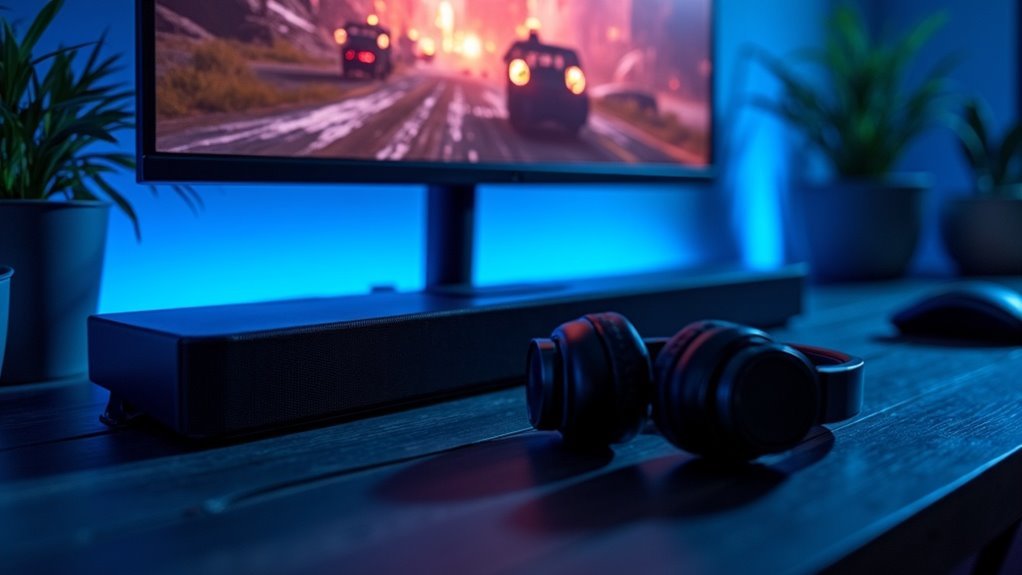
To use a soundbar with your gaming monitor, connect it via HDMI ARC by linking the monitor’s HDMI ARC port to the soundbar’s HDMI OUT. For a wireless option, pair through Bluetooth by pressing the Pair button on the soundbar and selecting it in your monitor’s Bluetooth settings. Make sure to set the soundbar as the default audio output in the monitor’s settings. If you encounter issues, troubleshooting steps can help ensure a seamless audio experience. Discover more ways to elevate your soundbar setup for gaming.
Key Takeaways
- To achieve optimal audio quality when using a soundbar with your gaming monitor, connect the soundbar to the monitor using the HDMI ARC port.
- Switch the soundbar to HDMI mode by pressing the Source button until “HDMI” is displayed.
- If you prefer a wireless setup, press the Pair button on the soundbar and select it from the Bluetooth settings menu on your monitor.
- Make sure to adjust the monitor’s audio settings to ensure sound is output through the connected soundbar.
- If you encounter issues, try checking the connections, restarting both devices, and confirming that the soundbar is set as the default audio output.
Connecting a Soundbar via HDMI
When you want to enhance your audio experience with a soundbar, connecting it to your gaming monitor via HDMI is an excellent choice.
First, ensure that your gaming monitor is equipped with an HDMI ARC (Audio Return Channel) input. Connect one end of an HDMI cable to the monitor’s HDMI ARC port and the other end to the soundbar’s HDMI OUT port.
Then, press the Source button on the soundbar until “HDMI” is displayed. Make sure to adjust your monitor’s settings to output audio through HDMI to achieve the best sound quality.
If you run into any issues, double-check that you’re using a high-speed HDMI cable and that both devices have the latest firmware updates.
Connecting a Soundbar via Bluetooth
Connecting a soundbar to your gaming monitor via Bluetooth offers a convenient way to enjoy immersive audio without the hassle of wires.
Start by pressing the Pair button on the soundbar or its remote until “BT” appears on its display. Next, navigate to the Bluetooth settings menu on your monitor and select the Bluetooth Speaker List or Bluetooth Audio Device option.
Wait for the soundbar to appear in the list of available devices, then select it to confirm the pairing. Finally, check your monitor’s audio settings to set the soundbar as the default audio output for an optimal sound experience.
Soundbars are designed to enhance your audio experience, making them a perfect complement to your gaming setup.
Connecting Other Audio Devices
After setting up your soundbar, you might want to explore additional audio options to enhance your gaming experience.
While soundbars provide immersive sound, many gaming monitors also support the connection of various audio devices, such as external speakers or Samsung’s Sound Towers.
Ensure that any audio devices you choose are compatible with your monitor’s HDMI port or other connection methods for optimal sound quality.
Sound Towers come equipped with features like Group Play and Karaoke Mode, which can elevate the gaming atmosphere.
For a more personal audio experience, consider using Galaxy Buds with Active Noise Canceling.
These options allow you to maximize your soundbar’s capabilities, creating a customized audio experience that caters to your gaming style.
Troubleshooting Common Soundbar Issues
While using a soundbar can significantly enhance your audio experience, you may encounter occasional issues that require troubleshooting.
Using a soundbar can greatly improve your audio experience, but occasional troubleshooting may be needed.
Here are some tips to help you resolve common soundbar problems:
- Ensure that your HDMI cable connections are secure and that the correct input mode is selected.
- Restart both the soundbar and your audio source device.
- Check that the soundbar is set as the default audio output in your device’s audio settings.
- Inspect all connections if you’re experiencing static or distorted audio.
- Consult the user manual for specific troubleshooting steps tailored to your soundbar model.
Recommended Soundbar Features
What features should you look for in a soundbar to enhance your gaming experience?
First, opt for bi-directional sound capabilities to achieve immersive audio that pulls you into the game.
Consider soundbars that support Group Play, allowing you to connect multiple speakers for synchronized audio during intense gaming sessions.
If you enjoy multiplayer or party gaming, a Karaoke Mode can add extra fun.
Look for models that allow wireless grouping of speakers for a tidy setup and easy configuration.
Finally, utilize a dedicated app for mobile control over music playback and sound settings, ensuring a seamless gaming experience.







