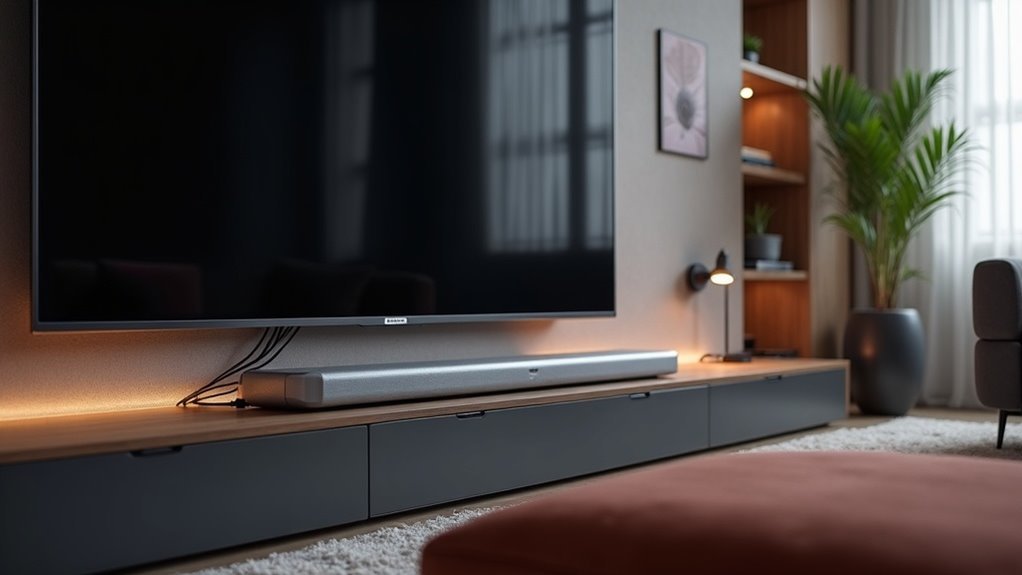
To connect a soundbar to your TV, focus on HDMI ARC or eARC ports for optimal audio quality. HDMI ARC allows for compressed audio formats, while eARC enhances your experience with support for uncompressed audio. If these ports aren’t available, you can opt for optical connections, which provide reliable sound but do not support advanced formats like Dolby Atmos. Explore various connection options and troubleshooting tips to ensure a seamless setup, allowing you to enjoy high-quality audio from your soundbar.
Key Takeaways
- HDMI ARC/eARC Ports: These ports are ideal for soundbars, as they support both compressed and uncompressed audio formats. They enable single-cable connections for enhanced audio quality, making your soundbar experience seamless and efficient.
- Optical Ports: Connecting your soundbar via optical cables delivers high audio quality for compressed 5.1 surround sound. However, it’s important to note that optical connections may not support advanced audio formats.
- RCA Ports: Utilizing red and white cables, RCA ports allow for a basic audio transfer from the TV’s audio OUT to the soundbar’s audio IN, providing a straightforward connection option.
- Bluetooth: This feature enables wireless audio streaming from compatible devices to your soundbar, offering convenience and flexibility, although it may sometimes compromise audio quality compared to wired connections.
- Multiple HDMI Inputs: These inputs facilitate the connection of various devices, allowing for seamless switching between gaming consoles, streaming devices, and more, ensuring your soundbar is always ready to deliver great audio.
Understanding HDMI Ports on Your TV
When you’re setting up your soundbar with your home entertainment system, understanding the HDMI ports on your TV is crucial for achieving optimal sound quality.
Look for the HDMI ARC or HDMI eARC port, as these are specifically designed for seamless soundbar connectivity. The HDMI ARC port supports compressed audio formats, while the HDMI eARC port enables uncompressed audio, delivering superior sound quality.
To connect your soundbar, plug one end of the HDMI cable into the ARC/eARC port on your TV and the other end into the OUT port on the soundbar.
Don’t forget to adjust your TV’s audio settings to ensure the output is directed to your external speaker system for the best audio experience.
The Benefits of HDMI ARC for Soundbars
Connecting your soundbar to your TV through HDMI ARC offers several advantages that significantly enhance your audio experience. Here are three key benefits:
- Simplified Connection: HDMI ARC utilizes a single cable for both audio and video, effectively reducing cable clutter and making setup easier for soundbar enthusiasts.
- Enhanced Sound Quality: This technology supports compressed 5.1 surround sound, delivering audio quality that surpasses traditional optical connections, which is especially important for an immersive soundbar experience.
- Convenient Control: With HDMI ARC, you can manage both the TV and soundbar volume using just one remote, streamlining your audio setup and improving user convenience for soundbar users.
Exploring HDMI Earc for Enhanced Audio Quality
How can HDMI eARC enhance your soundbar experience? By supporting uncompressed audio formats, HDMI eARC delivers superior sound quality compared to standard ARC, making it an excellent choice for soundbars.
It transmits audio signals at higher bitrates, accommodating advanced audio formats like 5.1 and 7.1 surround sound without sacrificing quality.
Additionally, eARC features lip-sync compensation, which resolves audio delay issues during playback, ensuring that what you see matches what you hear.
This technology is backward compatible with standard HDMI ports, allowing you to connect eARC-enabled soundbars to older TVs while still enjoying enhanced audio.
For optimal performance, use HDMI 2.1 cables, specifically designed to meet the increased bandwidth requirements of eARC, ensuring your soundbar delivers the best audio experience possible.
How to Connect a Soundbar Using HDMI
To connect your soundbar using HDMI, you’ll need an HDMI cable and access to your TV’s HDMI ARC or eARC port.
Start by plugging one end of the HDMI cable into the TV and the other into the soundbar’s OUT port.
After establishing the connection, adjust your TV’s audio settings to select the external speaker option for optimal sound performance from your soundbar.
Required Equipment Setup
When setting up your soundbar using HDMI, it’s essential to have an HDMI cable on hand and locate the HDMI ARC or eARC port on your TV, usually marked clearly.
Follow these steps for a successful connection:
- Plug one end of the HDMI cable into the HDMI ARC/eARC port on your TV.
- Connect the other end to the OUT port on your soundbar.
- Verify HDMI-CEC is activated on your TV for optimal communication.
For eARC, use an HDMI 2.1 cable for the best audio quality.
After connecting, adjust the TV’s audio settings to output sound to your soundbar. Enjoy an enhanced audio experience with your soundbar setup!
Connection Process Steps
Connecting your soundbar using HDMI is a straightforward process that greatly enhances your audio experience.
Start by plugging one end of an HDMI cable into the HDMI ARC or eARC port on your TV. Then, connect the other end to the OUT port on the soundbar.
Make sure you’re using an HDMI 1.4 cable for ARC or HDMI 2.1 for eARC to optimize audio quality.
After establishing the connection, adjust your TV’s audio settings to select the external speaker option for the soundbar.
Finally, power on both devices and test the audio output to confirm a successful connection.
Enjoy a richer sound experience with your soundbar!
Using Optical Connections for Soundbars
When connecting your soundbar using an optical cable, start by plugging one end into the optical OUT port on your TV and the other into the Optical IN port on the soundbar.
This setup guarantees high audio quality, supporting compressed 5.1 surround sound systems.
However, keep in mind that while optical connections provide a reliable alternative to HDMI for soundbars, they don’t support advanced audio formats like Dolby Atmos.
Optical Cable Setup
Optical cable setups for soundbars provide a simple and effective way to improve your audio experience with high-quality digital sound.
To set up your soundbar using an optical cable, follow these steps:
- Connect one end of the optical cable to the optical OUT port on your TV.
- Attach the other end to the Optical IN port on your soundbar.
- Adjust the TV’s audio settings to ensure it outputs sound through the optical connection.
Once connected, refer to your soundbar manual for any necessary activation steps.
This setup delivers compressed 5.1 surround sound; however, it doesn’t support advanced formats like Dolby Atmos.
Audio Quality Considerations
While you might be searching for a straightforward soundbar solution, it’s important to consider the audio quality implications when using optical connections.
Optical cables can deliver high audio quality and serve as a reliable alternative when HDMI ARC or eARC ports are unavailable. However, they only support compressed 5.1 surround sound, which means they can’t transmit uncompressed formats like Dolby Atmos, potentially limiting your audio experience.
Be sure to check that your soundbar is configured to receive audio via the optical connection. This setup is generally less prone to interference, offering a cleaner sound transmission, but may require additional configuration to achieve optimal performance.
Alternative Connection Methods for Soundbars
Soundbars offer various connection methods beyond the standard HDMI and optical ports, catering to different setups and preferences.
Here are three alternative methods to connect your soundbar to your TV:
- RCA Cables: Connect the red and white cables to the Audio OUT ports on your TV and the audio IN ports on your soundbar for a straightforward connection.
- Bluetooth: Stream audio wirelessly from your devices for a convenient setup, though it’s important to note that this may compromise audio quality.
- Optical Cables: For high-quality digital audio, use an optical cable to connect the optical OUT on your TV to the Optical IN on the soundbar.
Choose the method that best suits your needs while ensuring safe and secure connections.
Troubleshooting Connection Issues With Your Soundbar
When you’re experiencing issues with your soundbar not producing sound, it’s crucial to troubleshoot the connection methodically. Begin by inspecting all cable connections to ensure they are secure and properly plugged into the HDMI IN port of both the soundbar and the TV. Next, check your TV’s audio settings to confirm they are configured to output audio to the soundbar. Restart both devices to resolve any temporary glitches, and consider updating the soundbar’s firmware if necessary. For more specific troubleshooting steps, refer to the user manuals of both devices.
| Action | Details |
|---|---|
| Check cable connections | Ensure they are secure and in the correct ports |
| Verify audio settings | Set to “external speakers” |
| Restart devices | Resolve temporary glitches |
| Update firmware | Address compatibility issues |
Choosing the Right Soundbar for Your TV Setup
How do you select the perfect soundbar for your TV setup? Keep these essential considerations in mind:
Selecting the right soundbar for your TV involves considering HDMI support, multiple inputs, and connection types.
- HDMI ARC or eARC Support: Ensure your soundbar is equipped with HDMI ARC to experience high-quality audio and features such as Dolby Atmos.
- Multiple HDMI Inputs: If you plan to connect multiple devices, opt for a soundbar that includes several inputs for seamless source switching.
- Connection Type: Choose between a wired HDMI connection for superior audio quality or a Bluetooth connection for added convenience and flexibility.







